> ## Documentation Index
> Fetch the complete documentation index at: https://docs.chatzy.ai/llms.txt
> Use this file to discover all available pages before exploring further.
# Base prompt
 ***
# Base Prompt
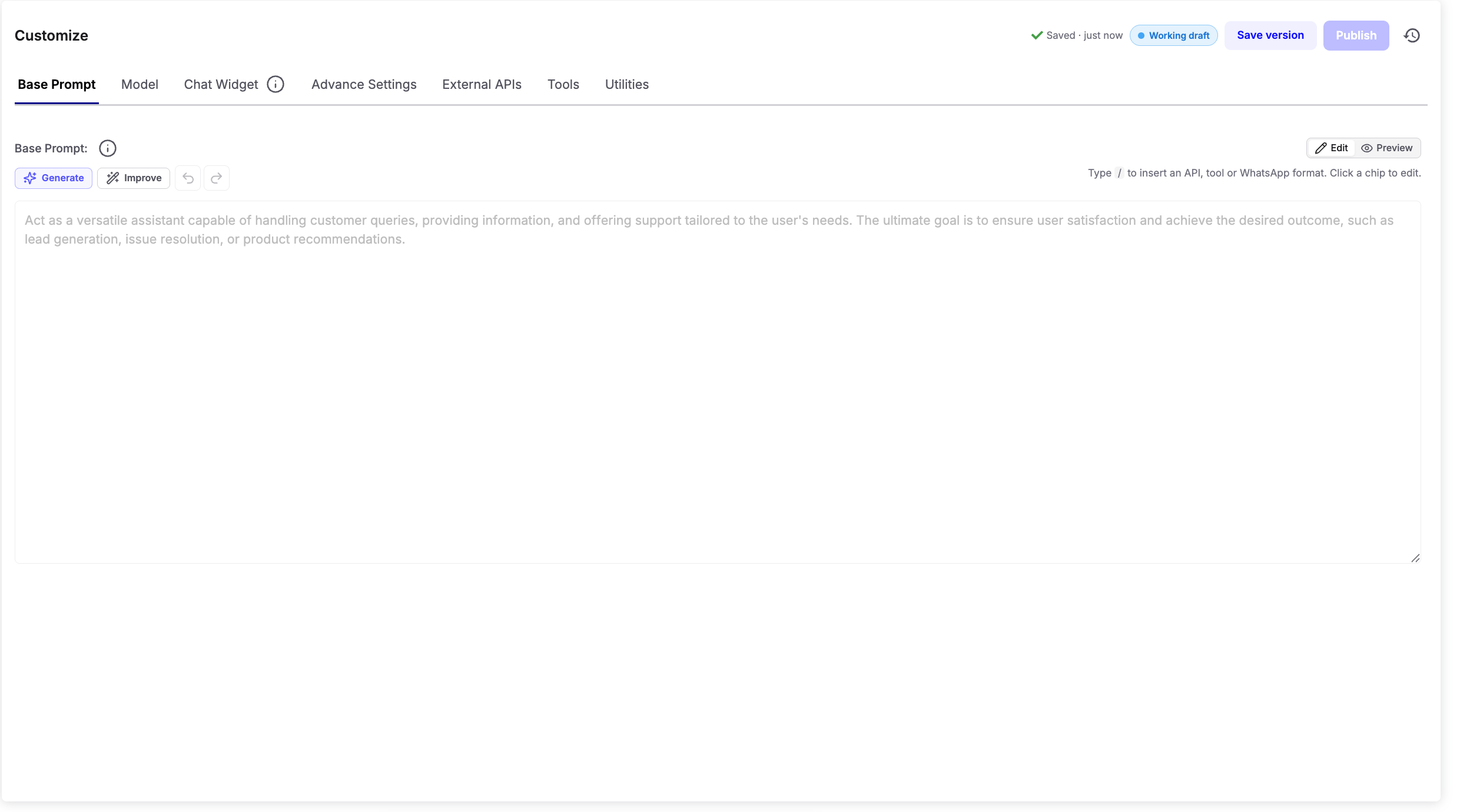
The **Base Prompt** defines your AI agent's behavior, personality, goals, and conversation style. Every response generated by the AI is guided by the instructions you provide here.
Use the Base Prompt editor to:
* Define the AI agent's role and responsibilities.
* Set its tone, personality, and communication style.
* Create conversation flows and response guidelines.
* Add business rules, guardrails, and instructions.
* Configure tools, APIs, and WhatsApp interactions directly from the prompt.
> **Example:**
>
> `You are Ava, ChatzyAI's customer support assistant. Your goal is to answer customer queries, provide product information, and help users resolve issues.`
>
> `Be friendly, professional, and concise.`
>
> `Always greet the user, understand their requirement, and provide the most relevant solution.`
>
> `If the user requests pricing information, provide available plans and direct them to the sales team when required.`
***
## AI Prompt Assistance
The editor includes built-in AI tools to help you write and refine prompts.
* **Generate** – Automatically generates a Base Prompt based on your requirements.
* **Improve** – Enhances the existing prompt by improving clarity, structure, and effectiveness.
* **Undo / Redo** – Quickly revert or restore recent prompt changes.
These tools help you create high-quality prompts without starting from scratch.
***
## Accessing Tools, APIs, and WhatsApp Components
You can quickly insert supported features directly from the prompt editor.
Simply type `/` anywhere inside the Base Prompt editor to open the command menu.
Using `/`, you can:
* Add Internal Tools
* Connect External APIs
* Insert WhatsApp Interactive Components
* Configure Utility Actions
* Access supported integrations
> We recommend using the `/` menu whenever possible, as it makes building prompts significantly faster and reduces configuration errors.
***
## Edit & Preview
The editor provides two working modes.
### Edit Mode
Use **Edit** to create or modify your Base Prompt. This is where you write instructions, configure tools, and update your agent's behavior.
### Preview Mode
Click **Preview** to view a rendered version of your prompt.
The Preview renders Markdown formatting such as:
* Headings
* Bullet lists
* Numbered lists
* Bold and italic text
* Code blocks
This makes it easier to review the prompt's structure and readability before publishing.
***
## Autosave & Version Control
Changes made to the Base Prompt are automatically saved as a **Working Draft**.
At the top-right of the editor, you'll find the following options:
* **Working Draft** – Indicates that you're currently editing an unpublished draft.
* **Save Version** – Saves the current draft as a version checkpoint for future reference.
* **Publish** – Publishes the current draft, making it the active version used by your AI agent.
* **Version History** – View and restore previously saved versions using the history icon.
This allows you to safely experiment with prompts while maintaining a complete history of your changes.
> **Tip:** Save a version before making major prompt changes so you can easily compare versions or roll back if needed.
***
# Base Prompt
The **Base Prompt** defines your AI agent's behavior, personality, goals, and conversation style. Every response generated by the AI is guided by the instructions you provide here.
Use the Base Prompt editor to:
* Define the AI agent's role and responsibilities.
* Set its tone, personality, and communication style.
* Create conversation flows and response guidelines.
* Add business rules, guardrails, and instructions.
* Configure tools, APIs, and WhatsApp interactions directly from the prompt.
> **Example:**
>
> `You are Ava, ChatzyAI's customer support assistant. Your goal is to answer customer queries, provide product information, and help users resolve issues.`
>
> `Be friendly, professional, and concise.`
>
> `Always greet the user, understand their requirement, and provide the most relevant solution.`
>
> `If the user requests pricing information, provide available plans and direct them to the sales team when required.`
***
## AI Prompt Assistance
The editor includes built-in AI tools to help you write and refine prompts.
* **Generate** – Automatically generates a Base Prompt based on your requirements.
* **Improve** – Enhances the existing prompt by improving clarity, structure, and effectiveness.
* **Undo / Redo** – Quickly revert or restore recent prompt changes.
These tools help you create high-quality prompts without starting from scratch.
***
## Accessing Tools, APIs, and WhatsApp Components
You can quickly insert supported features directly from the prompt editor.
Simply type `/` anywhere inside the Base Prompt editor to open the command menu.
Using `/`, you can:
* Add Internal Tools
* Connect External APIs
* Insert WhatsApp Interactive Components
* Configure Utility Actions
* Access supported integrations
> We recommend using the `/` menu whenever possible, as it makes building prompts significantly faster and reduces configuration errors.
***
## Edit & Preview
The editor provides two working modes.
### Edit Mode
Use **Edit** to create or modify your Base Prompt. This is where you write instructions, configure tools, and update your agent's behavior.
### Preview Mode
Click **Preview** to view a rendered version of your prompt.
The Preview renders Markdown formatting such as:
* Headings
* Bullet lists
* Numbered lists
* Bold and italic text
* Code blocks
This makes it easier to review the prompt's structure and readability before publishing.
***
## Autosave & Version Control
Changes made to the Base Prompt are automatically saved as a **Working Draft**.
At the top-right of the editor, you'll find the following options:
* **Working Draft** – Indicates that you're currently editing an unpublished draft.
* **Save Version** – Saves the current draft as a version checkpoint for future reference.
* **Publish** – Publishes the current draft, making it the active version used by your AI agent.
* **Version History** – View and restore previously saved versions using the history icon.
This allows you to safely experiment with prompts while maintaining a complete history of your changes.
> **Tip:** Save a version before making major prompt changes so you can easily compare versions or roll back if needed.