> ## Documentation Index
> Fetch the complete documentation index at: https://docs.chatzy.ai/llms.txt
> Use this file to discover all available pages before exploring further.
# Show messages
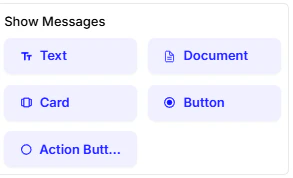
The **Show Messages** cards are for the chatbot's output what the user sees and receives. These cards let you present information in various formats to make the conversation more engaging and informative.
 ***
#### **Text**
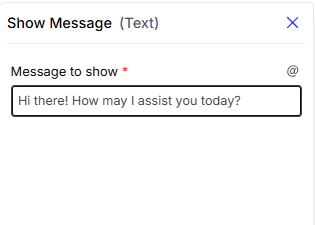
This is the most basic way to send a message. You simply add a block of text for the chatbot to display.
* **Message to show**: Enter the text you want the chatbot to send to the user.
***
#### **Text**
This is the most basic way to send a message. You simply add a block of text for the chatbot to display.
* **Message to show**: Enter the text you want the chatbot to send to the user.
 ***
#### **Document**
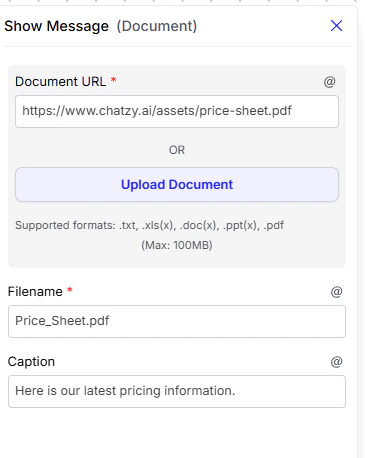
This card allows the chatbot to send a document to the user.
* **Document URL**: The web address of the document you want to send. You can also upload a document directly.
* **Filename**: The name the document will have when the user downloads it.
* **Caption**: A short message to display alongside the document.
***
#### **Document**
This card allows the chatbot to send a document to the user.
* **Document URL**: The web address of the document you want to send. You can also upload a document directly.
* **Filename**: The name the document will have when the user downloads it.
* **Caption**: A short message to display alongside the document.
 ***
#### **Card**
This card is used to display rich, structured information such as a product, service, or profile.
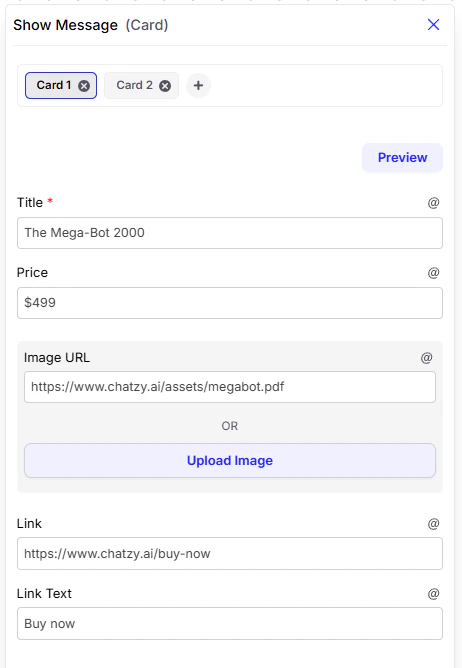
* **Title**: The main heading (e.g., product name, service name, or profile title).
* **Price**: An extra text field that can be used flexibly. Since it doesn’t have a fixed format, you can use it not only for prices but also as a **subtitle** (e.g., a short description, role, or category).
* **Image URL**: The web address of an image, or you can upload one directly.
* **Link**: A clickable URL for more details.
* **Link Text**: The button text for the link (e.g., "Learn More", "Buy Now").
> **Example 1:**
>
> * **Title**: `The Mega-Bot 2000`
> * **Price**: `$499`
> * **Image URL**: `https://www.chatzy.ai/assets/megabot.pdf`
> * **Link**: `https://www.chatzy.ai/buy-now`
> * **Link Text**: `Buy Now`
***
#### **Card**
This card is used to display rich, structured information such as a product, service, or profile.
* **Title**: The main heading (e.g., product name, service name, or profile title).
* **Price**: An extra text field that can be used flexibly. Since it doesn’t have a fixed format, you can use it not only for prices but also as a **subtitle** (e.g., a short description, role, or category).
* **Image URL**: The web address of an image, or you can upload one directly.
* **Link**: A clickable URL for more details.
* **Link Text**: The button text for the link (e.g., "Learn More", "Buy Now").
> **Example 1:**
>
> * **Title**: `The Mega-Bot 2000`
> * **Price**: `$499`
> * **Image URL**: `https://www.chatzy.ai/assets/megabot.pdf`
> * **Link**: `https://www.chatzy.ai/buy-now`
> * **Link Text**: `Buy Now`
 > **Example 2:**
>
> * **Title:** iPhone 15 Pro
> * **Price (used as subtitle):** 256GB – Titanium Gray
> * **Image:** Product image of the phone
> * **Link:** [https://apple.com/iphone-15-pro](https://apple.com/iphone-15-pro)
> * **Link Text:** Buy Now
***
#### **Button**
This card creates a clickable button, useful for directing the user to a specific external webpage.
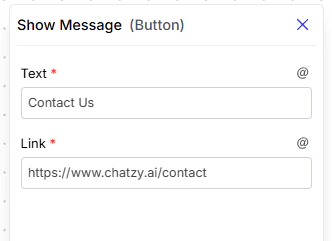
* **Text:** The label that appears on the button (e.g., "Visit Website").
* **Link:** The destination URL where the button directs the user.
> **Example 2:**
>
> * **Title:** iPhone 15 Pro
> * **Price (used as subtitle):** 256GB – Titanium Gray
> * **Image:** Product image of the phone
> * **Link:** [https://apple.com/iphone-15-pro](https://apple.com/iphone-15-pro)
> * **Link Text:** Buy Now
***
#### **Button**
This card creates a clickable button, useful for directing the user to a specific external webpage.
* **Text:** The label that appears on the button (e.g., "Visit Website").
* **Link:** The destination URL where the button directs the user.
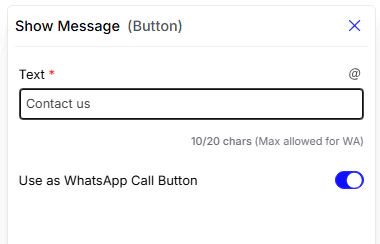
 * **Use as WhatsApp Call Button:** Enabling this option displays a **"Call Now"** button, allowing the user to call your WhatsApp number directly from the chat. (**Note:** This is a WhatsApp-exclusive feature).
* **Note:** When this is enabled, the content in the **Text** field serves as the message body displayed to the user alongside the call button.
* **Use as WhatsApp Call Button:** Enabling this option displays a **"Call Now"** button, allowing the user to call your WhatsApp number directly from the chat. (**Note:** This is a WhatsApp-exclusive feature).
* **Note:** When this is enabled, the content in the **Text** field serves as the message body displayed to the user alongside the call button.
 ***
#### **Action Button**
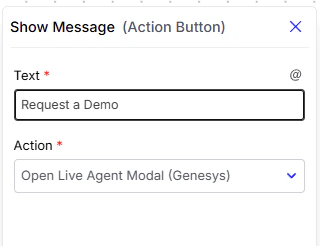
Similar to a regular button, this card creates a clickable button. However, instead of linking to an external webpage, it triggers an action within your chat flow, allowing you to advance the conversation based on the user's choice.
* **Text**: The text that appears on the button.
* **Triggered Action**: Defines which Live agent Modal in the conversation should start when clicked.
***
#### **Action Button**
Similar to a regular button, this card creates a clickable button. However, instead of linking to an external webpage, it triggers an action within your chat flow, allowing you to advance the conversation based on the user's choice.
* **Text**: The text that appears on the button.
* **Triggered Action**: Defines which Live agent Modal in the conversation should start when clicked.