> ## Documentation Index
> Fetch the complete documentation index at: https://docs.chatzy.ai/llms.txt
> Use this file to discover all available pages before exploring further.
# Tools
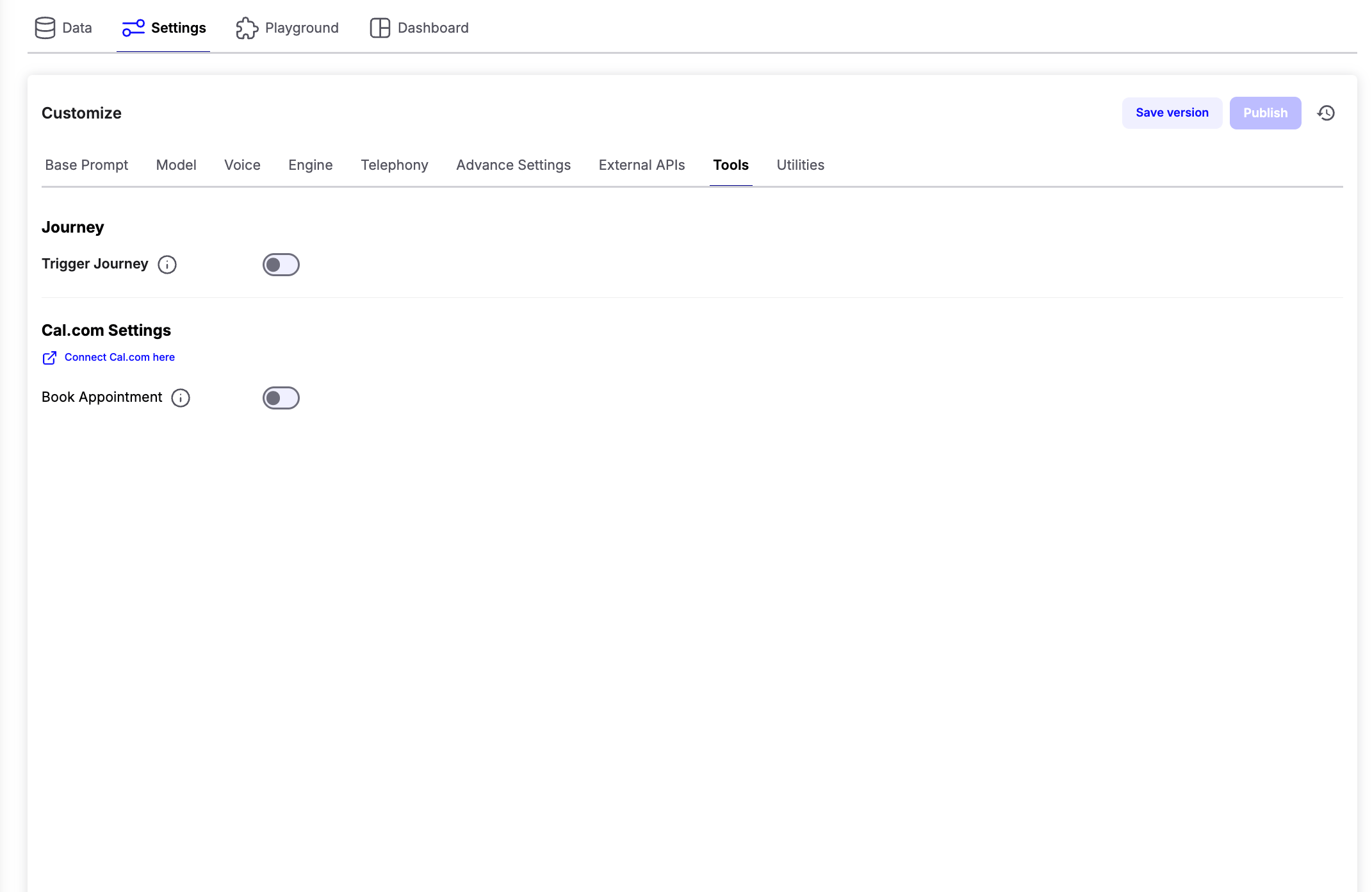
The **Tools** tab allows your voice AI Agent to trigger journey and schedule appointments directly from conversations.
 ***
## Journey
The **Trigger Journey** feature allows your voice AI Agent to automatically trigger a Journey when specific conditions are met during a conversation.
Enable the **Trigger Journey** toggle and select the journey you want the AI agent to trigger.
> **Note:** Only journeys that use an **Inbound Webhook** trigger are available for selection.
***
### Configuring Journey Triggers
After selecting a journey, describe **when** the AI should trigger it directly in your Base Prompt.
Clearly specify:
* The condition for triggering the journey.
* The journey name.
* The data that should be passed to the journey.
For every selected journey, you should clearly explain its purpose and trigger conditions within your prompt using **"/"** commands
**Example**
```text theme={null}
When the customer confirms an appointment, trigger_journey_email_test and pass the following details:
{
"customer_name": "",
"customer_phone": "",
"appointment_date": "",
"time_slot": ""
}
```
Once the specified condition is met, the AI agent automatically invokes the selected journey with the provided context.
***
## Cal.com Integration
Chatzy AI supports native integration with **Cal.com** for appointment scheduling.
Before enabling appointment booking, connect your Cal.com account using the **Connect Cal.com here** option.
After connecting your account:
1. Enable the **Book Appointment** toggle.
2. Select the **Cal.com Event** that should be booked by the AI agent.
3. Choose the **Timezone** that should be used while checking availability and scheduling appointments.
***
## Journey
The **Trigger Journey** feature allows your voice AI Agent to automatically trigger a Journey when specific conditions are met during a conversation.
Enable the **Trigger Journey** toggle and select the journey you want the AI agent to trigger.
> **Note:** Only journeys that use an **Inbound Webhook** trigger are available for selection.
***
### Configuring Journey Triggers
After selecting a journey, describe **when** the AI should trigger it directly in your Base Prompt.
Clearly specify:
* The condition for triggering the journey.
* The journey name.
* The data that should be passed to the journey.
For every selected journey, you should clearly explain its purpose and trigger conditions within your prompt using **"/"** commands
**Example**
```text theme={null}
When the customer confirms an appointment, trigger_journey_email_test and pass the following details:
{
"customer_name": "",
"customer_phone": "",
"appointment_date": "",
"time_slot": ""
}
```
Once the specified condition is met, the AI agent automatically invokes the selected journey with the provided context.
***
## Cal.com Integration
Chatzy AI supports native integration with **Cal.com** for appointment scheduling.
Before enabling appointment booking, connect your Cal.com account using the **Connect Cal.com here** option.
After connecting your account:
1. Enable the **Book Appointment** toggle.
2. Select the **Cal.com Event** that should be booked by the AI agent.
3. Choose the **Timezone** that should be used while checking availability and scheduling appointments.
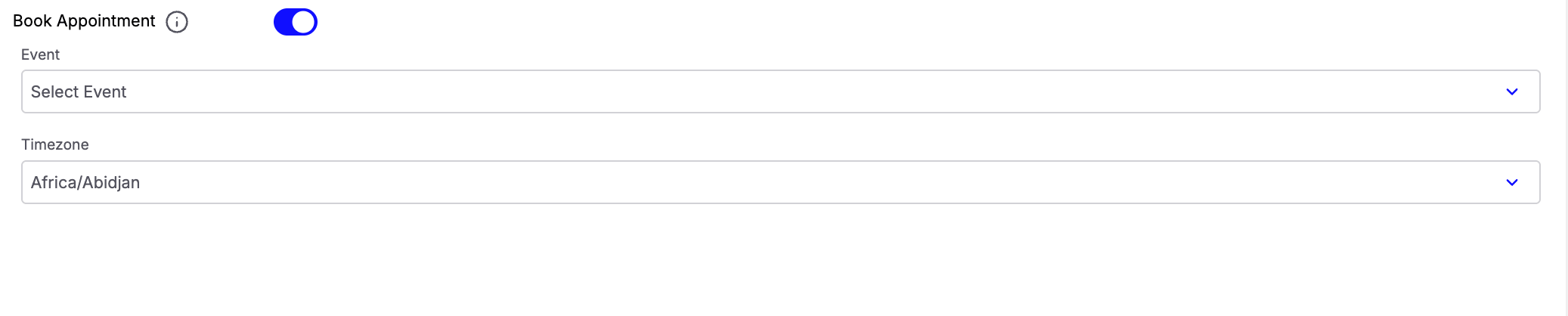 The selected event determines which appointment type the AI agent can book, while the timezone ensures that available slots are shown and scheduled correctly.
Once configured, the selected Cal.com tools become available directly inside the **Base Prompt**.
Simply type `/` in the prompt editor to access the available appointment tools, including:
* **Check Availability Of Slots**
* **Book Appointment**
* **Reschedule Appointment**
* **Cancel Appointment**
* **Get Bookings**
You can then describe **when** each tool should be used during the conversation.
**Example**
```text theme={null}
When a user wants to schedule a demo, first /check_availability_of_slots
If the user selects a suitable slot, use the /book_appointment to create the booking.
If the user wants to change an existing booking, use the /reschedule_appointment
If the user wants to cancel their appointment, use the /cancel_appointment
```
> **Tip:** Clearly describe the conditions under which each Cal.com tool should be used in your prompt.
The selected event determines which appointment type the AI agent can book, while the timezone ensures that available slots are shown and scheduled correctly.
Once configured, the selected Cal.com tools become available directly inside the **Base Prompt**.
Simply type `/` in the prompt editor to access the available appointment tools, including:
* **Check Availability Of Slots**
* **Book Appointment**
* **Reschedule Appointment**
* **Cancel Appointment**
* **Get Bookings**
You can then describe **when** each tool should be used during the conversation.
**Example**
```text theme={null}
When a user wants to schedule a demo, first /check_availability_of_slots
If the user selects a suitable slot, use the /book_appointment to create the booking.
If the user wants to change an existing booking, use the /reschedule_appointment
If the user wants to cancel their appointment, use the /cancel_appointment
```
> **Tip:** Clearly describe the conditions under which each Cal.com tool should be used in your prompt.