> ## Documentation Index
> Fetch the complete documentation index at: https://docs.chatzy.ai/llms.txt
> Use this file to discover all available pages before exploring further.
# Contacts
### Contacts Dashboard
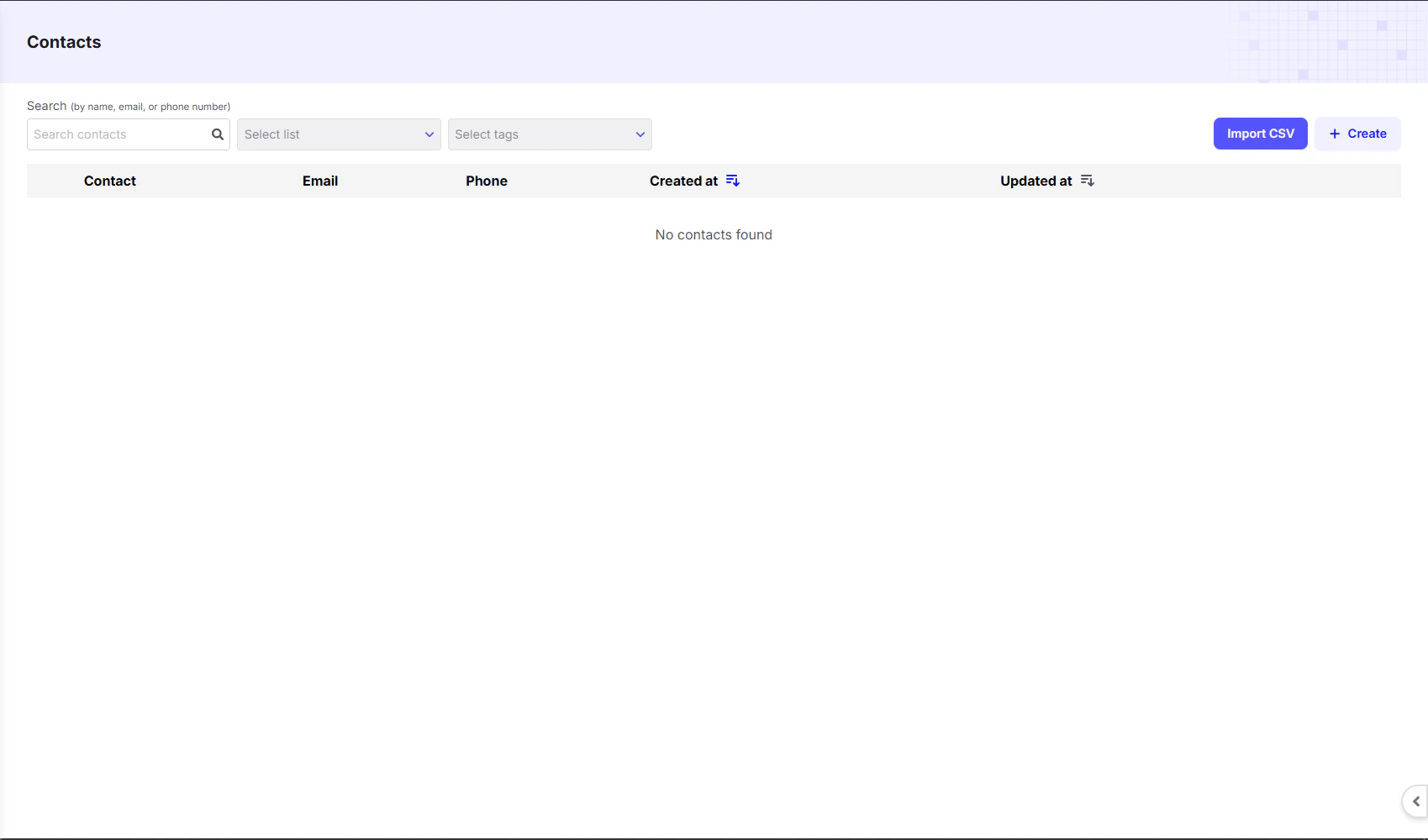
The **Contacts Dashboard** is your central hub for managing all your leads and customers. Here, you can view, filter, and organize your contact list to better manage your audience.
 ***
#### Key Features
* **Search & Filters**: Quickly find contacts using the search bar or filter them by selecting a specific **list** or **tags**. This allows you to segment your audience for targeted campaigns.
* **Import CSV**: Import contacts in bulk from an existing file to quickly add your entire contact list.
* **Create**: Use the **`+ Create`** button to manually add a new contact.
* **Contact List**: The main table provides a clear overview of your contacts, including their **name**, **email**, **phone number**, and when their record was **created or updated**.
* **Contact Card**: Click on any contact to open their card, which shows:
* **Basic Information** – First Name, Last Name, Email, Phone Number
* **Attributes** – Custom details such as City, Gender, or Last Purchase Date
* **Tags** – Labels to categorize the contact, e.g. `VIP`, `Lead`, or `Support`.
***
### Contact Management
The dashboard makes it easy to manage your audience by either manually creating contacts or importing them in bulk.
***
#### Create New Contact
When you click the **`+ Create`** button, a pop-up appears where you can manually add a single contact.
***
#### Key Features
* **Search & Filters**: Quickly find contacts using the search bar or filter them by selecting a specific **list** or **tags**. This allows you to segment your audience for targeted campaigns.
* **Import CSV**: Import contacts in bulk from an existing file to quickly add your entire contact list.
* **Create**: Use the **`+ Create`** button to manually add a new contact.
* **Contact List**: The main table provides a clear overview of your contacts, including their **name**, **email**, **phone number**, and when their record was **created or updated**.
* **Contact Card**: Click on any contact to open their card, which shows:
* **Basic Information** – First Name, Last Name, Email, Phone Number
* **Attributes** – Custom details such as City, Gender, or Last Purchase Date
* **Tags** – Labels to categorize the contact, e.g. `VIP`, `Lead`, or `Support`.
***
### Contact Management
The dashboard makes it easy to manage your audience by either manually creating contacts or importing them in bulk.
***
#### Create New Contact
When you click the **`+ Create`** button, a pop-up appears where you can manually add a single contact.
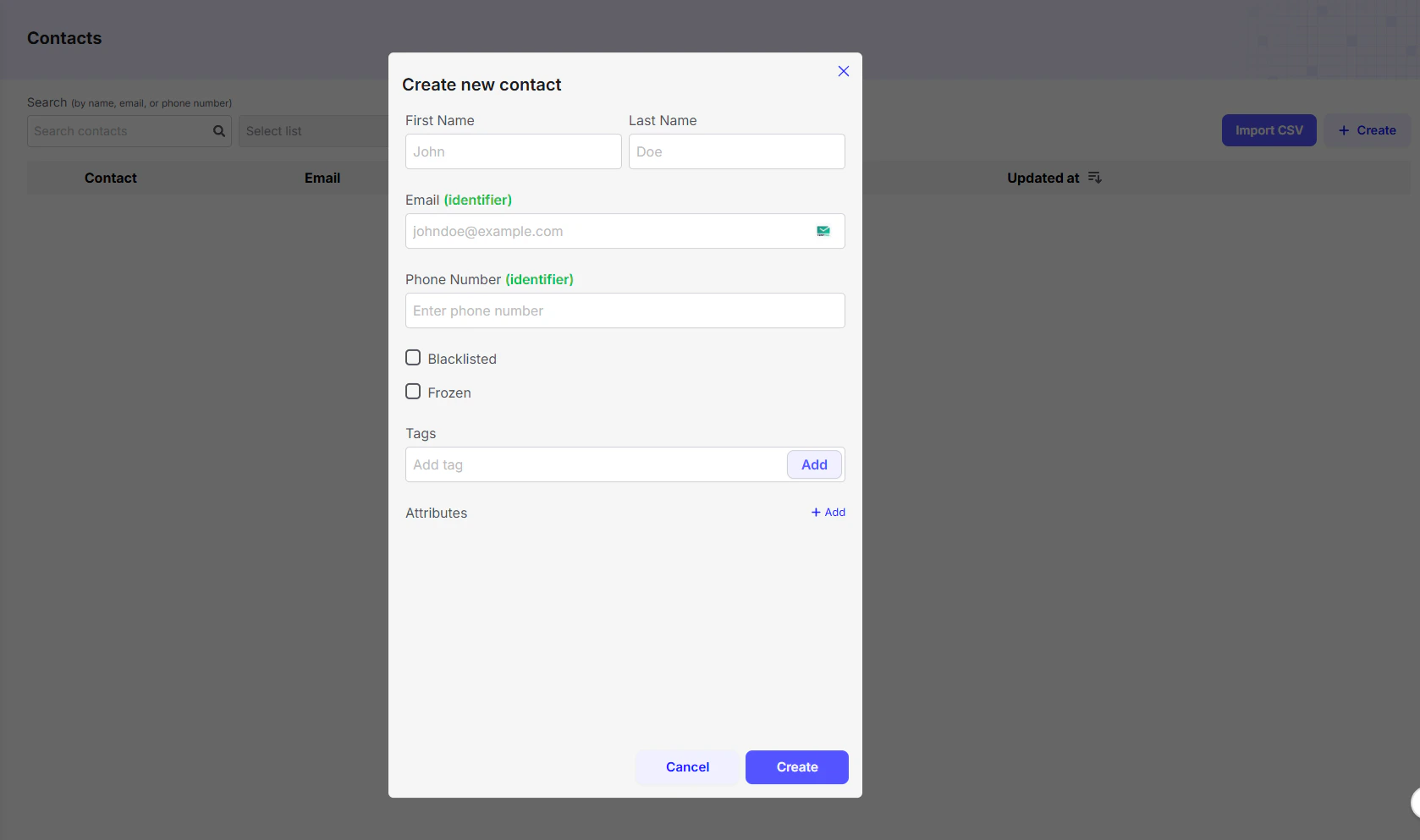 * **First Name & Last Name**: Enter the contact's name.
* **Email & Phone Number**: Used as primary identifiers. At least one is required.
* **Blacklisted**: Prevents any communication from being sent to this contact.
* **Frozen**: Temporarily pauses communication with the contact.
* **Tags**: Add labels to categorize the contact (e.g., `VIP`, `Lead`, `Support`).
* **Attributes**: Store custom data points (e.g., `City`, `Last Purchase Date`).
***
#### Import Contacts (CSV)
The **Import CSV** option lets you upload a spreadsheet to add multiple contacts at once. The process has three steps:
* **First Name & Last Name**: Enter the contact's name.
* **Email & Phone Number**: Used as primary identifiers. At least one is required.
* **Blacklisted**: Prevents any communication from being sent to this contact.
* **Frozen**: Temporarily pauses communication with the contact.
* **Tags**: Add labels to categorize the contact (e.g., `VIP`, `Lead`, `Support`).
* **Attributes**: Store custom data points (e.g., `City`, `Last Purchase Date`).
***
#### Import Contacts (CSV)
The **Import CSV** option lets you upload a spreadsheet to add multiple contacts at once. The process has three steps:
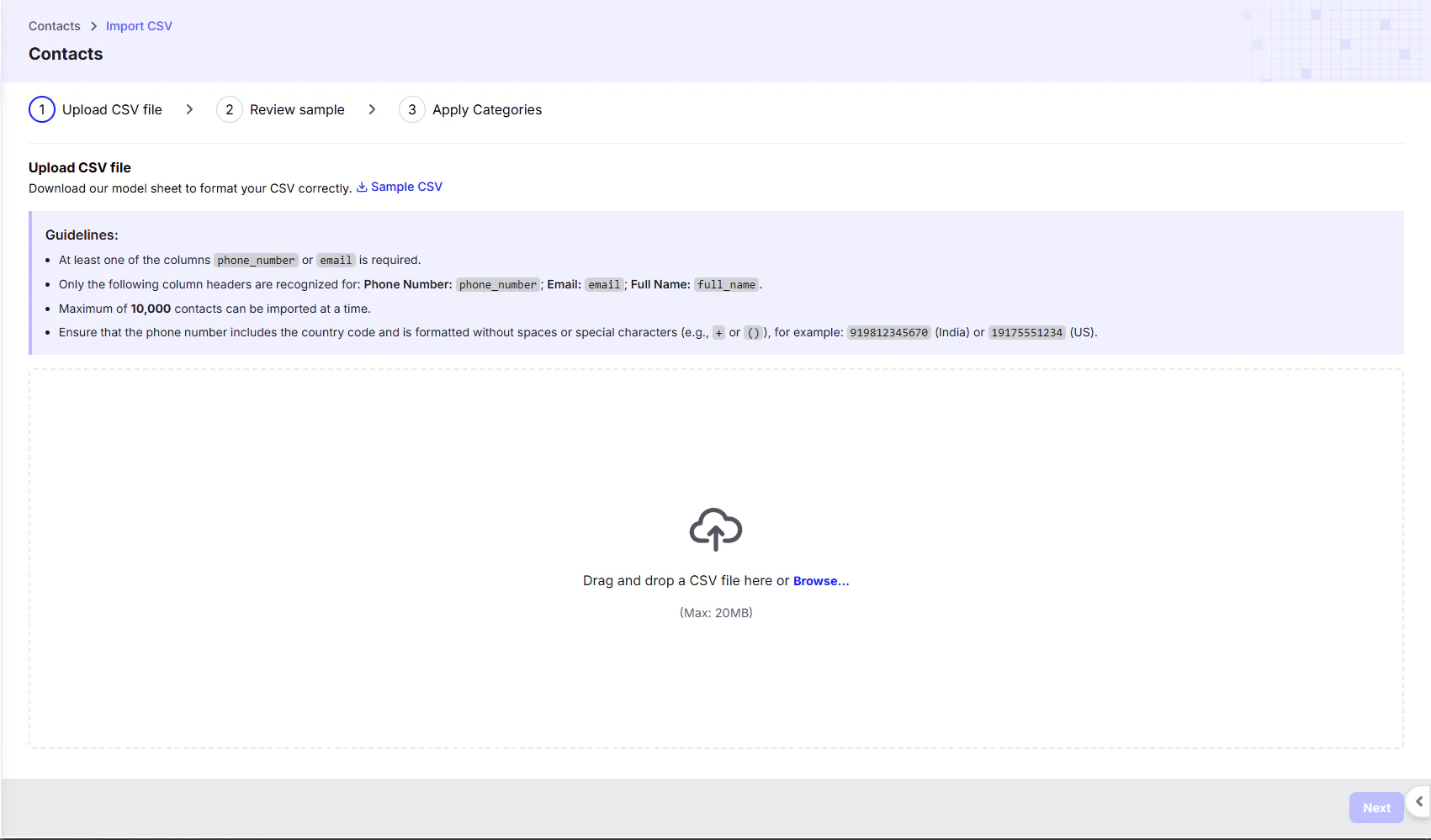 **1. Upload CSV File**
* You can save an Excel sheet as a CSV file and import it.
* A **sample CSV file** is provided—download it to check the correct format.
* The file must include either a **`phone_number`** or an **`email`** column to uniquely identify each contact.
* Accepted column headers:
* `phone_number` (for phone numbers)
* `email` (for email addresses)
* `full_name` (for full name)
* Maximum of **10,000 contacts** per upload.
**Phone Number Format Rules:**
* Must include the **country code**.
* Do **not** include a **plus sign** before the country code.
* Avoid spaces, brackets, or special characters.
* Example: An Indian number should have **12 digits** including the country code `91`.
**2. Review Sample**
* After uploading, review a sample of your data to confirm proper formatting.
**3. Apply Categories**
* You can select an **existing list** or create a **new list** to keep imported contacts organized.
* If no list is selected and you click **Finish**, Chatzy AI will auto-create a list named **"Import"** with the current date and time.
***
#### Attributes & Custom Data
* Any additional columns in the CSV (e.g., **Gender**, **Age**, **Address**, **Country**) are stored as **custom attributes**.
* Attributes are saved as key-value pairs (e.g., `Gender: Male`).
***
#### After Import
* Once imported, all contacts including their **name, email, phone number, and creation date** appear in the **Contacts Dashboard**.
* Click any contact to view or edit:
* **Basic Information** – First Name, Last Name, Email, Phone Number
* **Custom Attributes** – All extra columns from your CSV file.
* You can update or edit a contact’s details at any time.
***
**1. Upload CSV File**
* You can save an Excel sheet as a CSV file and import it.
* A **sample CSV file** is provided—download it to check the correct format.
* The file must include either a **`phone_number`** or an **`email`** column to uniquely identify each contact.
* Accepted column headers:
* `phone_number` (for phone numbers)
* `email` (for email addresses)
* `full_name` (for full name)
* Maximum of **10,000 contacts** per upload.
**Phone Number Format Rules:**
* Must include the **country code**.
* Do **not** include a **plus sign** before the country code.
* Avoid spaces, brackets, or special characters.
* Example: An Indian number should have **12 digits** including the country code `91`.
**2. Review Sample**
* After uploading, review a sample of your data to confirm proper formatting.
**3. Apply Categories**
* You can select an **existing list** or create a **new list** to keep imported contacts organized.
* If no list is selected and you click **Finish**, Chatzy AI will auto-create a list named **"Import"** with the current date and time.
***
#### Attributes & Custom Data
* Any additional columns in the CSV (e.g., **Gender**, **Age**, **Address**, **Country**) are stored as **custom attributes**.
* Attributes are saved as key-value pairs (e.g., `Gender: Male`).
***
#### After Import
* Once imported, all contacts including their **name, email, phone number, and creation date** appear in the **Contacts Dashboard**.
* Click any contact to view or edit:
* **Basic Information** – First Name, Last Name, Email, Phone Number
* **Custom Attributes** – All extra columns from your CSV file.
* You can update or edit a contact’s details at any time.
***