> ## Documentation Index
> Fetch the complete documentation index at: https://docs.chatzy.ai/llms.txt
> Use this file to discover all available pages before exploring further.
# Whatsapp
## Setting up WhatsApp
### What you'll need:
WhatsApp has specific criteria that you'll need to meet when installing the channel. Make sure you're familiar with the rules before you start.
* An existing personal Facebook account to create or link a Meta Business Manager account. If you are linking an existing Meta Business Account, your personal account must be an **admin** on the Meta Business Account.
* A WhatsApp number **not currently in use** (must be able to receive OTP via SMS).
* The legal name of your company.
* Your WhatsApp Business display name, which will be visible to your customers.
* The URL of your business' website
* Your business email address. If you don't have one yet, you can create one during the installation process.
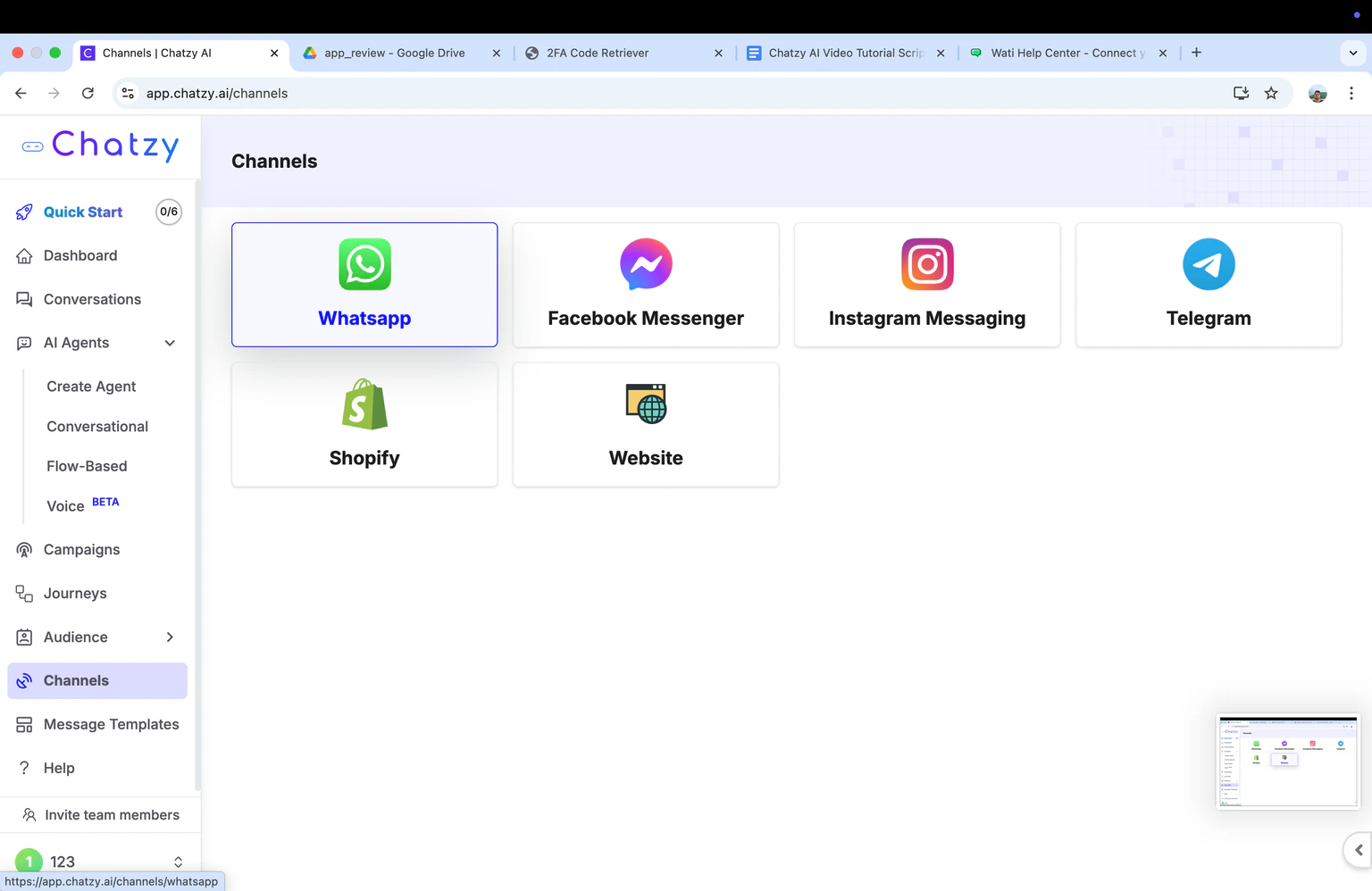
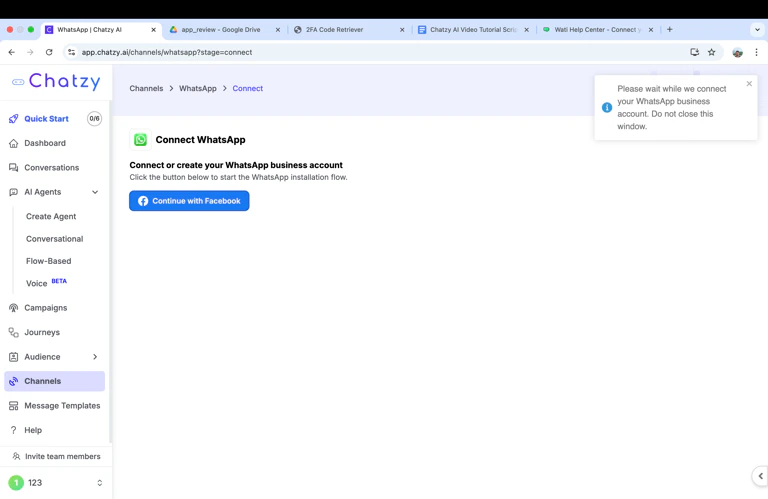
1. Go to the channels section and open WhatsApp
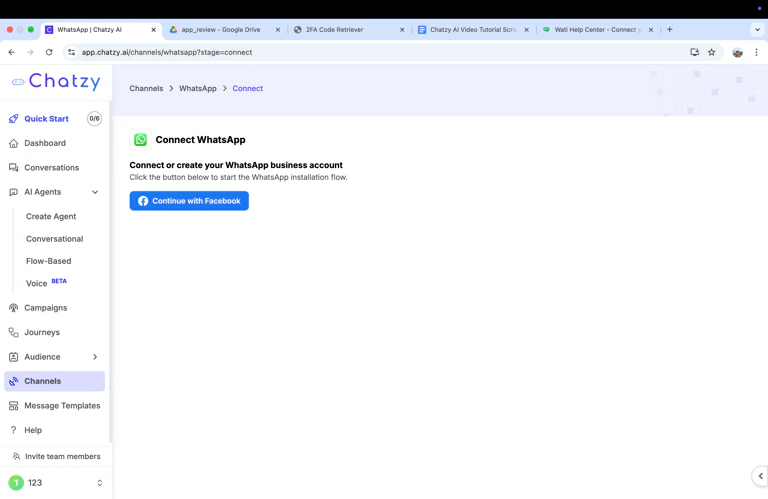
 2. Click this. Please use the login with Admin Access to your Meta Business Manager
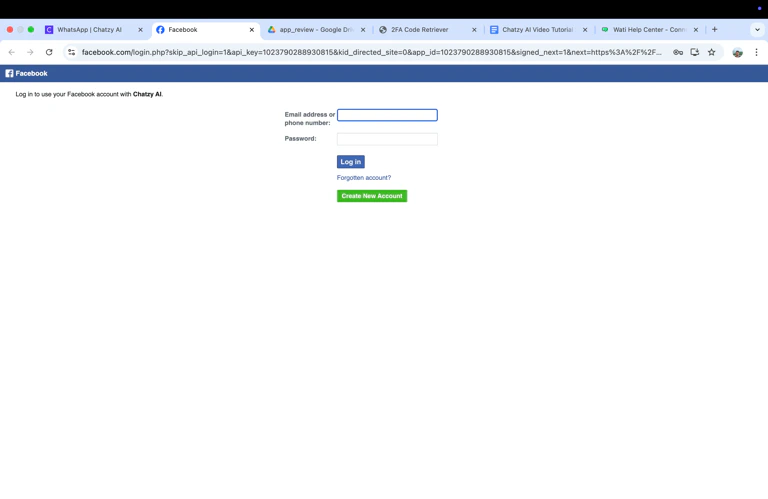
 3. Continue Logging in with your Credentials
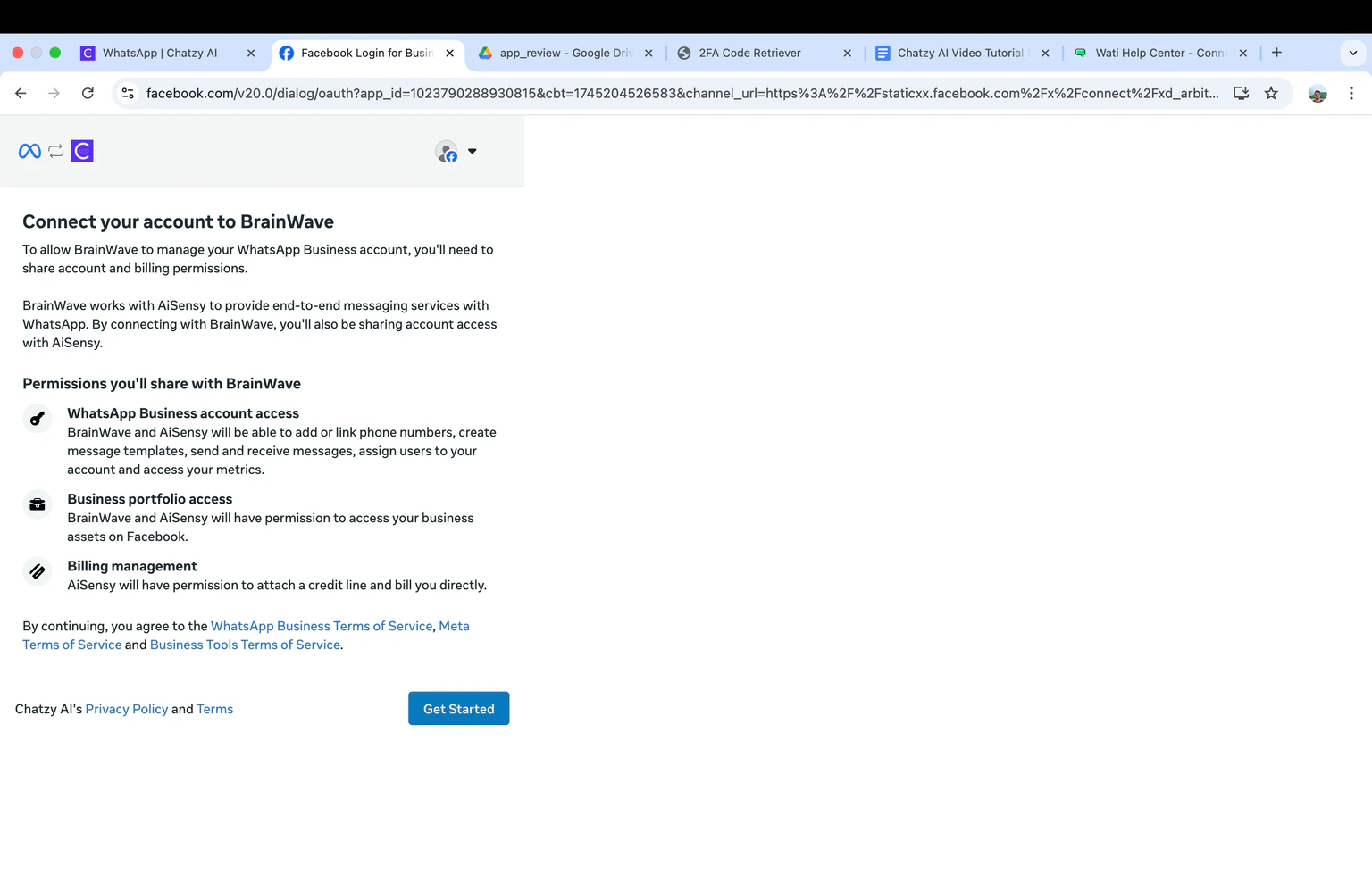
 4. Verify if the account is correct and click "Get Started"
 5. Select or create a Business profile - if you are creating a new profile then business legal name and website.
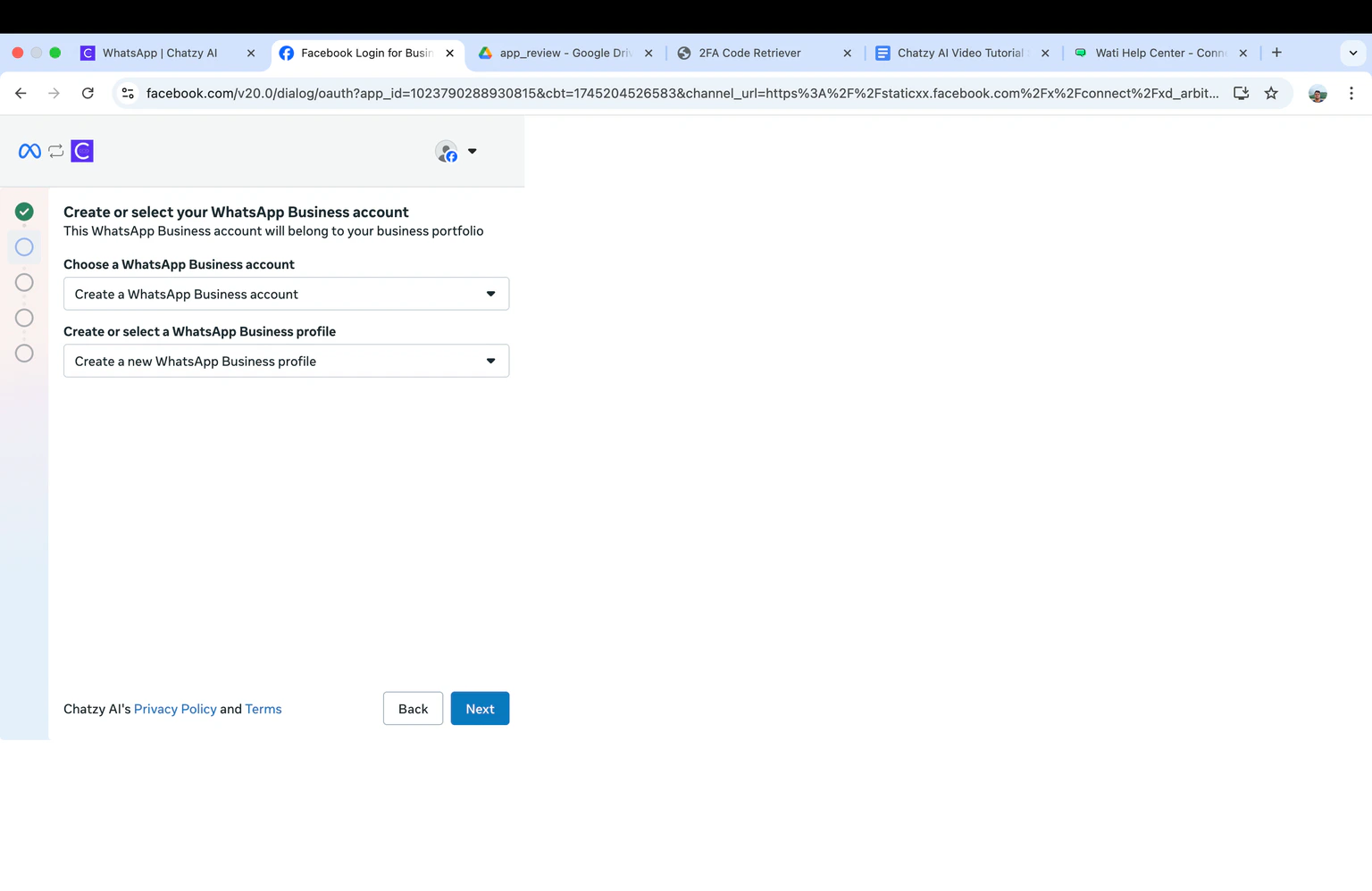
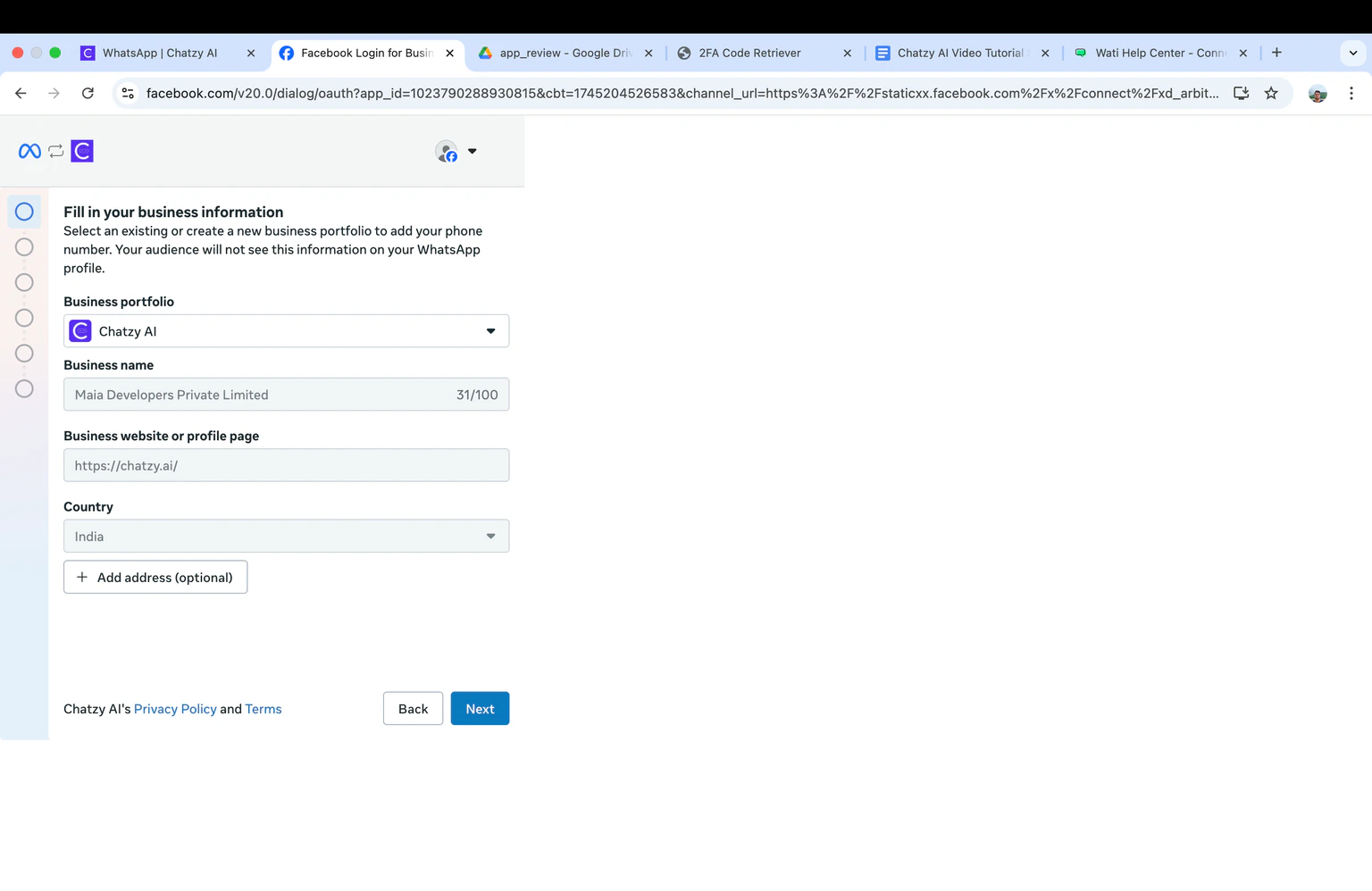 6. Click and Choose a WhatsApp Business account & Click on Create a new WhatsApp Business profile
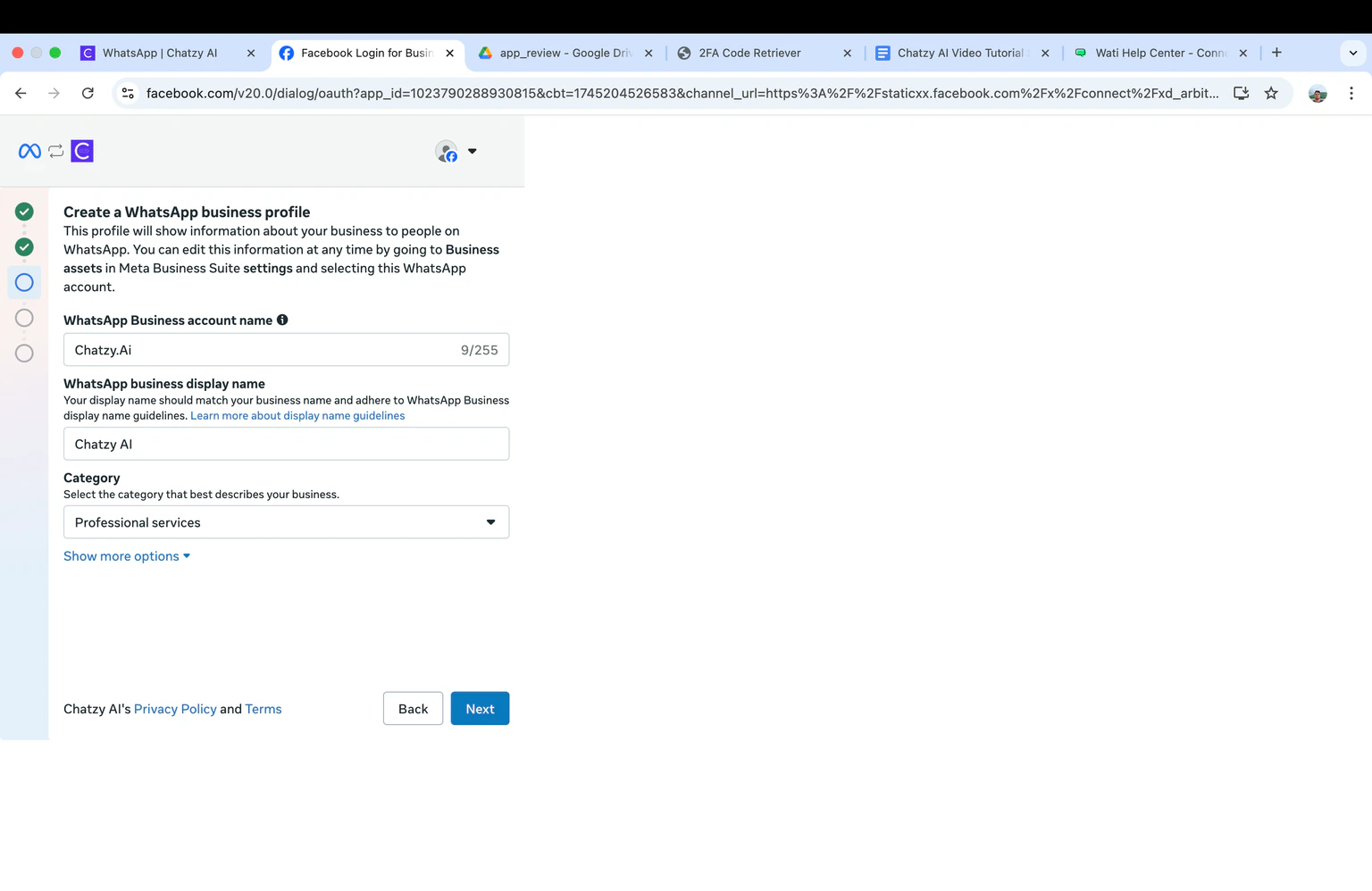
 7. Create your WhatsApp business account name & Create your WhatsApp Business display name
Click on Next
7. Create your WhatsApp business account name & Create your WhatsApp Business display name
Click on Next
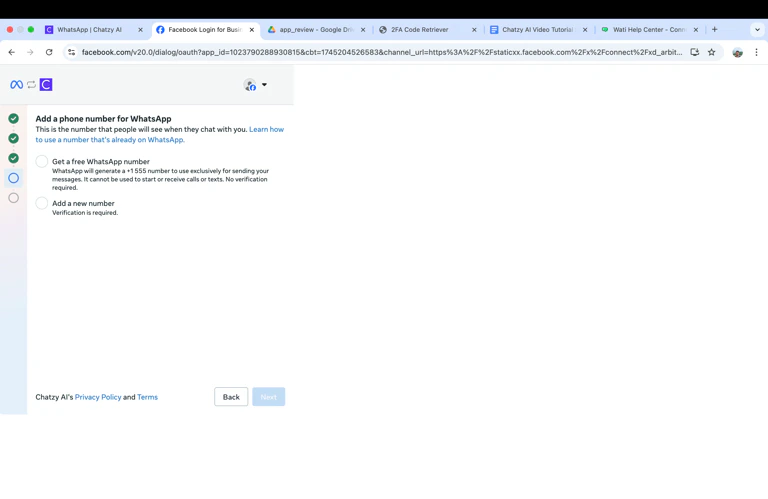
 8. Input the phone number you would like to connect Chatzy AI & Choose the method to receive the verification code
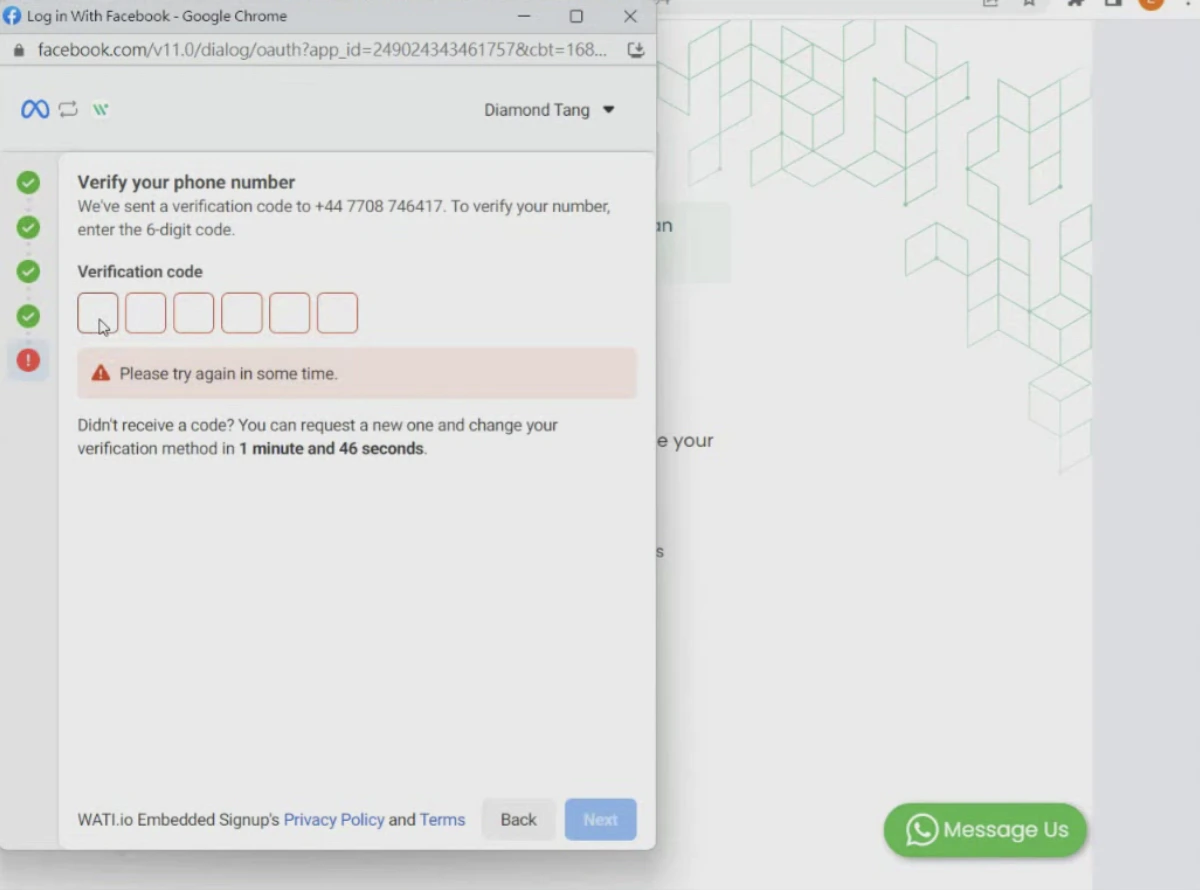
 9. Enter the code and click Next
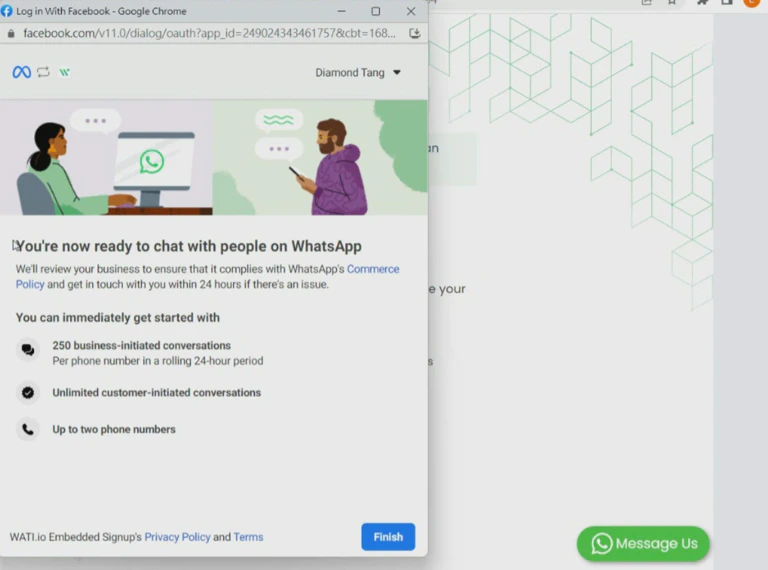
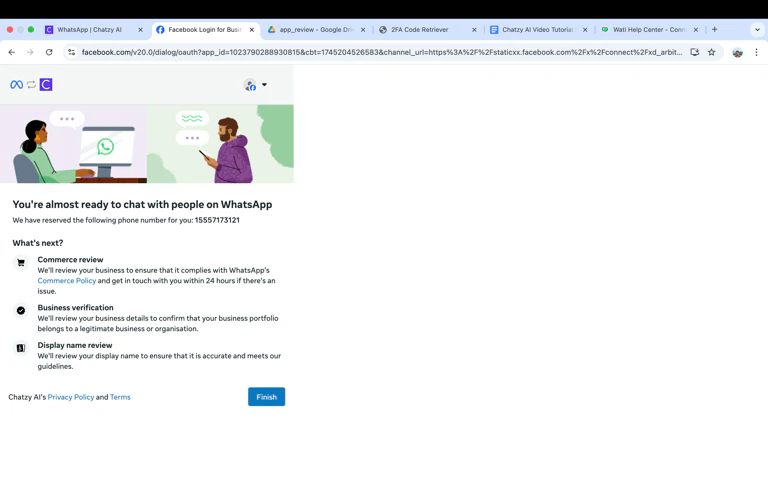
 10. When you see this page, your number is now connected.
 ### Installation criteria and rules
When installing WhatsApp, you will need to use a valid phone number, which you must have access to during the installation process.
The following rules apply:
* **Number ownership:** You must own the phone number that you want to use for WhatsApp Business API. This means that you must have legal control over the number, either by owning it or by having the authorization to use it for business purposes.
* **Number format:** The phone number that you register must follow the international format, which includes a country code and an area code. For example, if the phone number is from the United States and has the area code "408" and the number "555-1212", the full number would be "+1-408-555-1212".
* **Number availability:** If you are using a number from another provider or the number does not appear in the BSP provided numbers list, you must be able to receive calls or SMS messages. WhatsApp will send a verification code to the number as part of the activation process.
* **Number cleanliness:** The phone number must be "clean", which means that it hasn't been previously registered with WhatsApp by another user. If the phone has been used before, it might be associated with a different account, and WhatsApp won't be able to activate it for your business.
You can use the following number type with WhatsApp:
* **Landline numbers:** These are fixed-line numbers that are typically associated with businesses.
* **Mobile numbers:** These are traditional mobile phone numbers that can receive SMS messages.
The following number types are prohibited:
* **Numbers with an IVR** (automated call menu) attached to it, unless this feature can be disabled to receive the activation token.
* **Shortcodes**
* **Toll-free numbers**
The following business verticals are not allowed by WhatsApp and will not be approved:
* Adult content
* Alcohol
* Animal sales, including live animals, livestock, or any parts of animals
* Currency
* Dating
* Defense
* Digital subscription and digital content
* Drugs or related products
* Gambling
* Tobacco
* Weapons, ammunition, explosiv
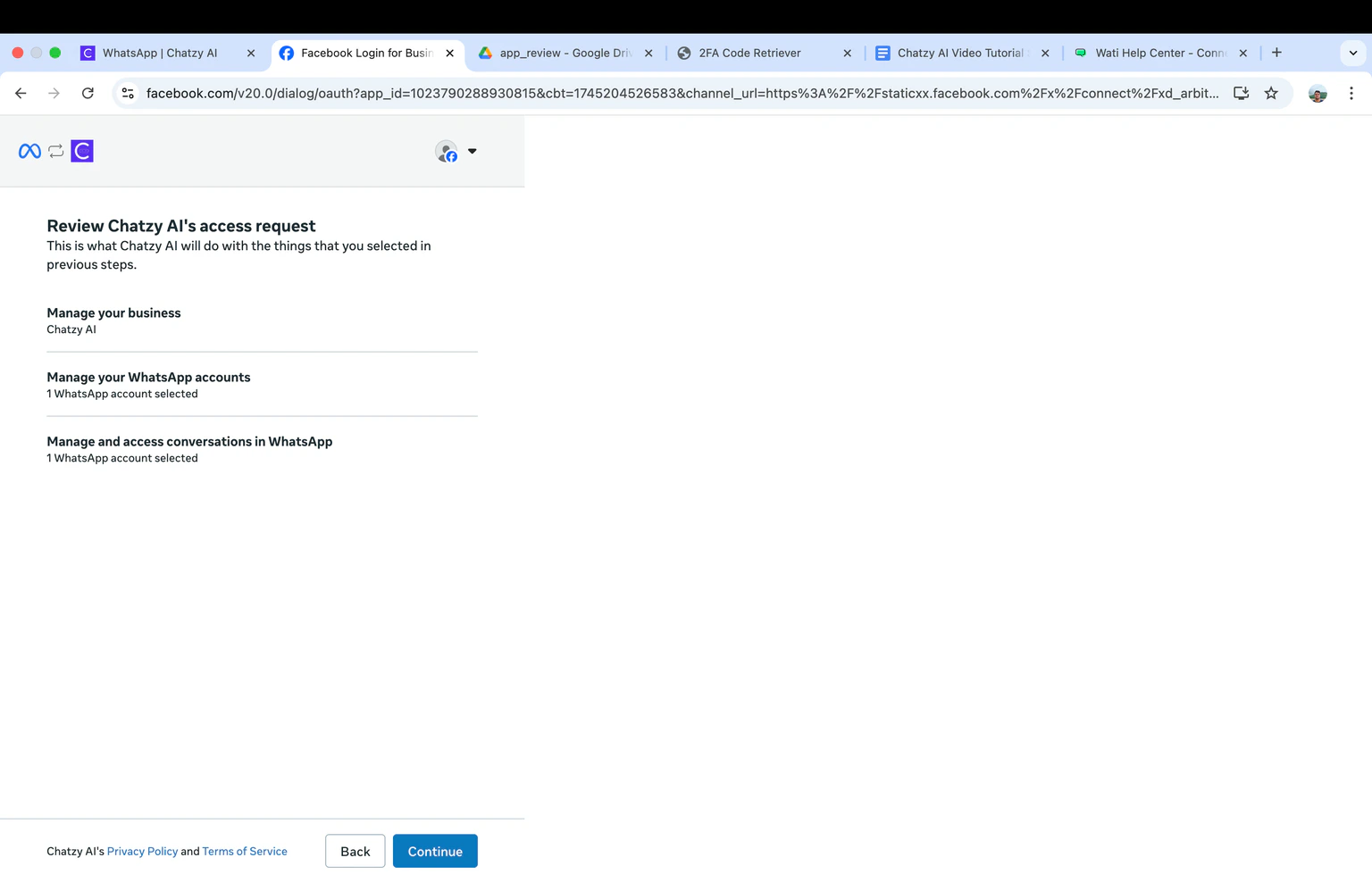
To install WhatsApp, you need to grant Chatzy permission to access and manage your WhatsApp account.
You will share:
* Account access to allow Chatzy to create templates, add phone numbers, send messages, access metrics and assign users to your WhatsApp account.
* Billing management permissions. By default, a business is billed through Chatzy monthly invoice and we will pass on any charges that your WhatsApp business account incurs.
You must add a display name that you will use to message customers. The display name must meet [Facebook's Display Name Guidelines](https://www.facebook.com/business/help/338047025165344).
If the display name represents a business that your company is working with (i.e., if the business is an agency, distributor, partner, or parent company), then the relationship between the business represented in the display name and end-client business must be evident and clear in both parties' business websites.
For example, if Global Voyager signs up for WhatsApp and wants to use the display name Commercial Air, you must submit links to both websites stating that Commercial Air is a subsidiary of Global Voyager.
If you check the box to say that your display name is different from their legal business name, you will then be prompted to enter a link to a website citing the business relationship.
### Installation criteria and rules
When installing WhatsApp, you will need to use a valid phone number, which you must have access to during the installation process.
The following rules apply:
* **Number ownership:** You must own the phone number that you want to use for WhatsApp Business API. This means that you must have legal control over the number, either by owning it or by having the authorization to use it for business purposes.
* **Number format:** The phone number that you register must follow the international format, which includes a country code and an area code. For example, if the phone number is from the United States and has the area code "408" and the number "555-1212", the full number would be "+1-408-555-1212".
* **Number availability:** If you are using a number from another provider or the number does not appear in the BSP provided numbers list, you must be able to receive calls or SMS messages. WhatsApp will send a verification code to the number as part of the activation process.
* **Number cleanliness:** The phone number must be "clean", which means that it hasn't been previously registered with WhatsApp by another user. If the phone has been used before, it might be associated with a different account, and WhatsApp won't be able to activate it for your business.
You can use the following number type with WhatsApp:
* **Landline numbers:** These are fixed-line numbers that are typically associated with businesses.
* **Mobile numbers:** These are traditional mobile phone numbers that can receive SMS messages.
The following number types are prohibited:
* **Numbers with an IVR** (automated call menu) attached to it, unless this feature can be disabled to receive the activation token.
* **Shortcodes**
* **Toll-free numbers**
The following business verticals are not allowed by WhatsApp and will not be approved:
* Adult content
* Alcohol
* Animal sales, including live animals, livestock, or any parts of animals
* Currency
* Dating
* Defense
* Digital subscription and digital content
* Drugs or related products
* Gambling
* Tobacco
* Weapons, ammunition, explosiv
To install WhatsApp, you need to grant Chatzy permission to access and manage your WhatsApp account.
You will share:
* Account access to allow Chatzy to create templates, add phone numbers, send messages, access metrics and assign users to your WhatsApp account.
* Billing management permissions. By default, a business is billed through Chatzy monthly invoice and we will pass on any charges that your WhatsApp business account incurs.
You must add a display name that you will use to message customers. The display name must meet [Facebook's Display Name Guidelines](https://www.facebook.com/business/help/338047025165344).
If the display name represents a business that your company is working with (i.e., if the business is an agency, distributor, partner, or parent company), then the relationship between the business represented in the display name and end-client business must be evident and clear in both parties' business websites.
For example, if Global Voyager signs up for WhatsApp and wants to use the display name Commercial Air, you must submit links to both websites stating that Commercial Air is a subsidiary of Global Voyager.
If you check the box to say that your display name is different from their legal business name, you will then be prompted to enter a link to a website citing the business relationship.