> ## Documentation Index
> Fetch the complete documentation index at: https://docs.chatzy.ai/llms.txt
> Use this file to discover all available pages before exploring further.
# Google Sheet
The **Google Sheets** action allows you to update data to Google Sheets directly from your journey. You can use it to automatically store leads, update existing records.
Before using this action, you must connect your Google account.
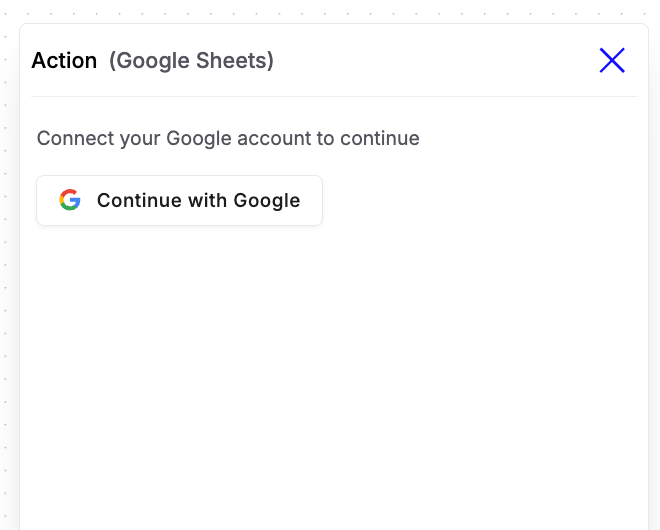 Once connected, choose the desired **Action Type**.
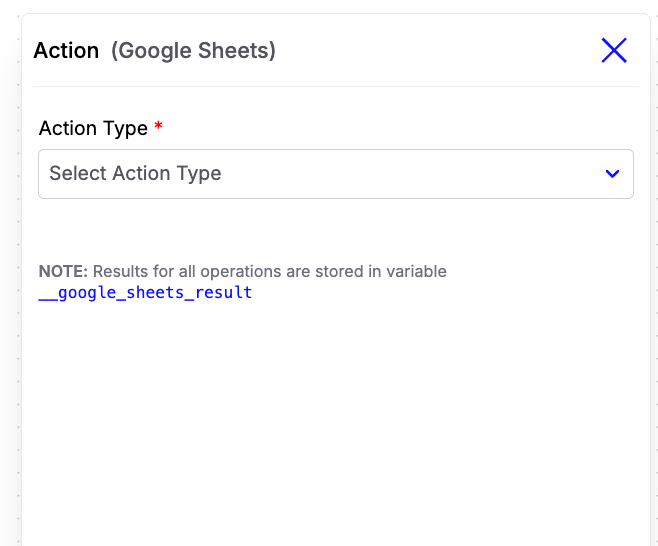 Currently, the following operations are supported:
* **Append Rows** - Add one or more new rows to a Google Sheet.
* **Update Row** – Update specific columns in an existing row.
***
## Append Rows
Use **Append Rows** to insert new data into the selected spreadsheet.
Currently, the following operations are supported:
* **Append Rows** - Add one or more new rows to a Google Sheet.
* **Update Row** – Update specific columns in an existing row.
***
## Append Rows
Use **Append Rows** to insert new data into the selected spreadsheet.
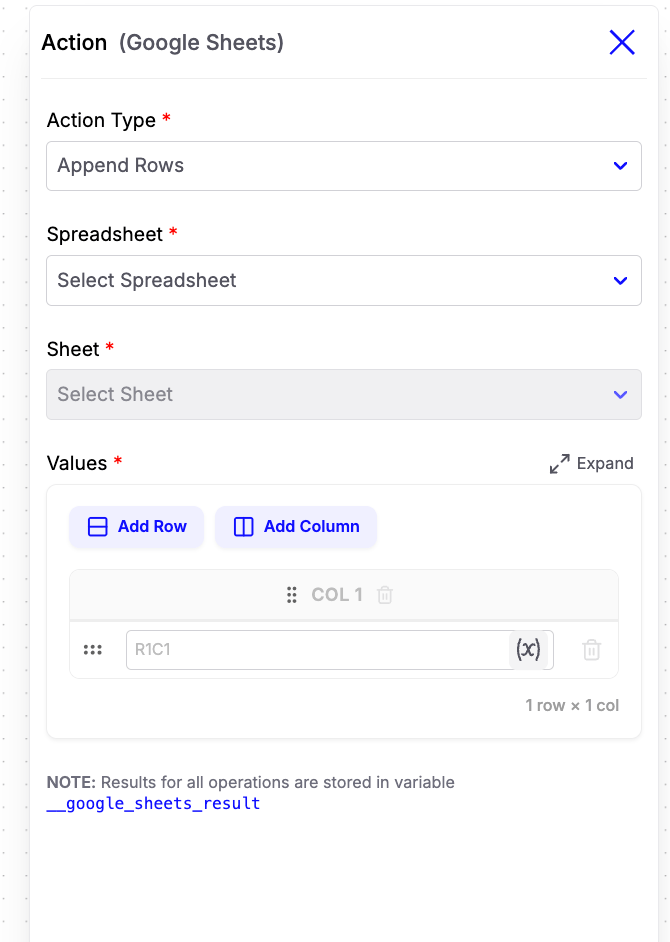 ### Configuration Fields
* **Spreadsheet**\
Select the Google Spreadsheet where data should be added.
* **Sheet**\
Choose the worksheet within the selected spreadsheet.
* **Values**\
Define the data to be appended.
* **Add Row** – Insert multiple rows in a single operation.
* **Add Column** – Add additional columns for each row.
* Each cell supports **dynamic variables**, allowing you to populate values from your workflow.
**Example:**
| Name | Phone | Budget |
| ------------------------ | -------------------------- | ------------ |
| `{{contact.first_name}}` | `{{contact.phone_number}}` | `{{budget}}` |
***
## Update Row
Use **Update Row** to modify an existing row in your spreadsheet.
### Configuration Fields
* **Spreadsheet**\
Select the Google Spreadsheet where data should be added.
* **Sheet**\
Choose the worksheet within the selected spreadsheet.
* **Values**\
Define the data to be appended.
* **Add Row** – Insert multiple rows in a single operation.
* **Add Column** – Add additional columns for each row.
* Each cell supports **dynamic variables**, allowing you to populate values from your workflow.
**Example:**
| Name | Phone | Budget |
| ------------------------ | -------------------------- | ------------ |
| `{{contact.first_name}}` | `{{contact.phone_number}}` | `{{budget}}` |
***
## Update Row
Use **Update Row** to modify an existing row in your spreadsheet.
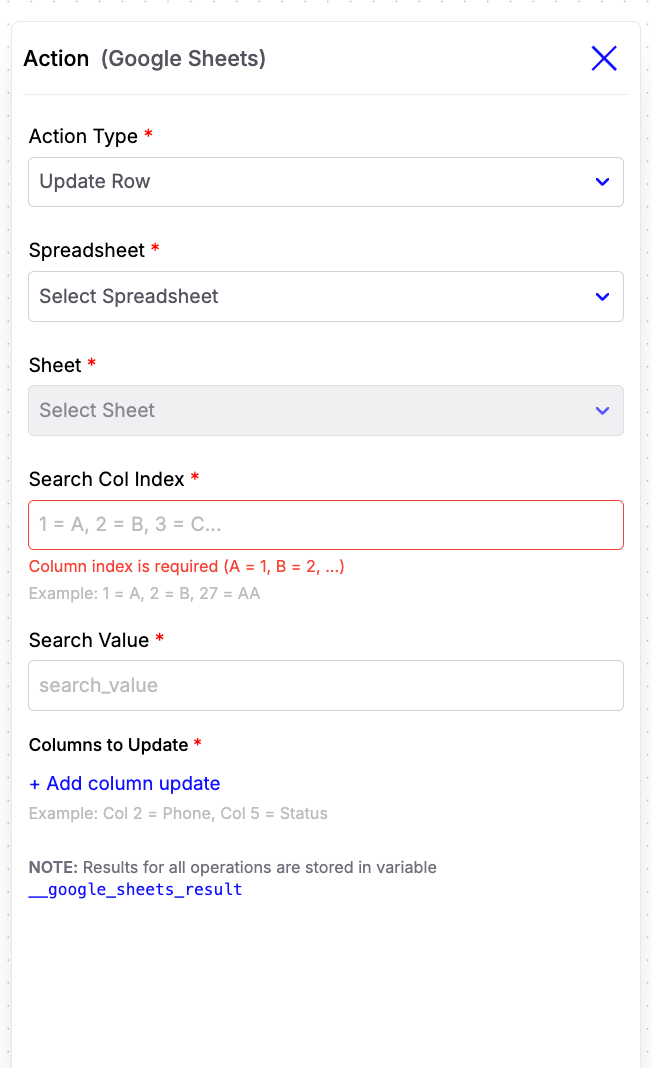 ### Configuration Fields
* **Spreadsheet**\
Select the Google Spreadsheet.
* **Sheet**\
Choose the worksheet containing the row to update.
* **Search Column Index**\
Enter the column number used to locate the row.
Examples:
* Column A → `1`
* Column B → `2`
* Column C → `3`
* **Search Value**\
Specify the value to search for within the selected column. Dynamic variables are supported.
**Example:**
`{{contact.phone_number}}`
* **Columns to Update**\
Specify which columns should be updated and provide the corresponding values.
**Example:**
* Column 2 → `{{contact.first_name}}`
* Column 5 → `Interested`
***
### Example Use Case
Suppose you're building a lead qualification journey.
1. A user provides their name, phone number, and budget.
2. Use **Append Rows** to store the lead in a Google Sheet.
3. Later, after a sales representative updates the lead status, use **Update Row** to modify the corresponding row by searching with the user's phone number.
This allows Google Sheets to act as a lightweight CRM while keeping your journey fully automated.
### Configuration Fields
* **Spreadsheet**\
Select the Google Spreadsheet.
* **Sheet**\
Choose the worksheet containing the row to update.
* **Search Column Index**\
Enter the column number used to locate the row.
Examples:
* Column A → `1`
* Column B → `2`
* Column C → `3`
* **Search Value**\
Specify the value to search for within the selected column. Dynamic variables are supported.
**Example:**
`{{contact.phone_number}}`
* **Columns to Update**\
Specify which columns should be updated and provide the corresponding values.
**Example:**
* Column 2 → `{{contact.first_name}}`
* Column 5 → `Interested`
***
### Example Use Case
Suppose you're building a lead qualification journey.
1. A user provides their name, phone number, and budget.
2. Use **Append Rows** to store the lead in a Google Sheet.
3. Later, after a sales representative updates the lead status, use **Update Row** to modify the corresponding row by searching with the user's phone number.
This allows Google Sheets to act as a lightweight CRM while keeping your journey fully automated.