> ## Documentation Index
> Fetch the complete documentation index at: https://docs.chatzy.ai/llms.txt
> Use this file to discover all available pages before exploring further.
# Wait until
The **Wait Until** action pauses a journey until a specific event or condition is met, rather than a fixed amount of time. This enables dynamic flows that can adapt to user inactivity, responses, or other real-time events.
 #### Configuration Fields
* **Wait**\
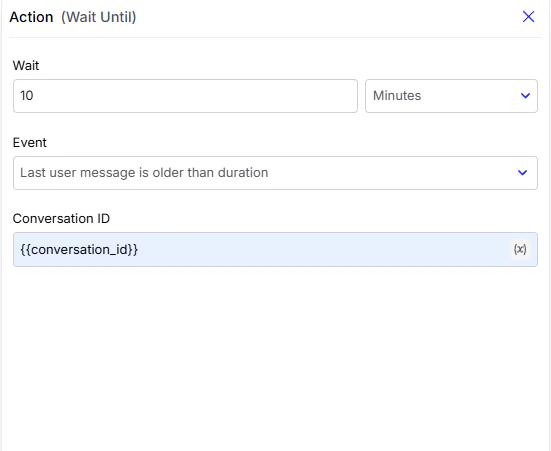
Defines the duration linked to the selected event. For example, if the event is *Last user message is older than duration*, you can specify the duration here (e.g., 10 minutes).
* **Event**
Dropdown to select the condition that must be satisfied for the journey to proceed.
* **Last user message is older than duration**\
Useful for re-engaging users who haven’t replied for a certain time.
* Conversation ID
Identifies the specific conversation that the action should monitor for the defined event.
#### Configuration Fields
* **Wait**\
Defines the duration linked to the selected event. For example, if the event is *Last user message is older than duration*, you can specify the duration here (e.g., 10 minutes).
* **Event**
Dropdown to select the condition that must be satisfied for the journey to proceed.
* **Last user message is older than duration**\
Useful for re-engaging users who haven’t replied for a certain time.
* Conversation ID
Identifies the specific conversation that the action should monitor for the defined event.
`{{conversation_id}}`
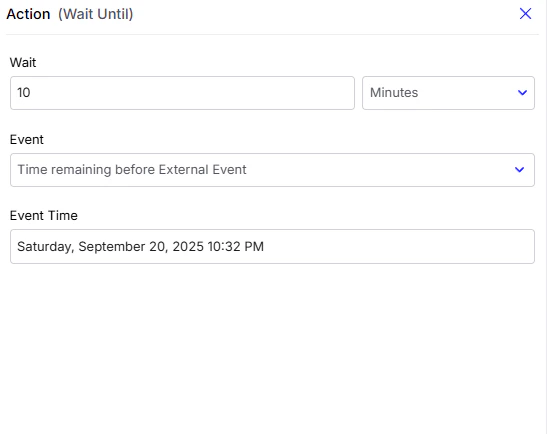
* **Time remaining before external event**\
Triggers an action before a scheduled event.
* The event time must be provided in the format:
```
"%A, %B %d, %Y %I:%M %p"
```
Each symbol has a meaning:
%A → Full weekday name (e.g., Monday, Tuesday)
%B → Full month name (e.g., September, January)
%d → Day of the month (01–31)
%Y → Full year (e.g., 2025)
%I → Hour (01–12, 12-hour clock)
%M → Minutes (00–59)
%p → AM or PM indicator\
e.g.
**Wednesday, September 17, 2025 07:30 PM**
Suppose you have a meeting booking form on your website. When a user books a meeting, the details (date & time) are sent to your CRM. From there, the CRM triggers an **Inbound Webhook** in Chatzy.
You can then set up a flow like this:
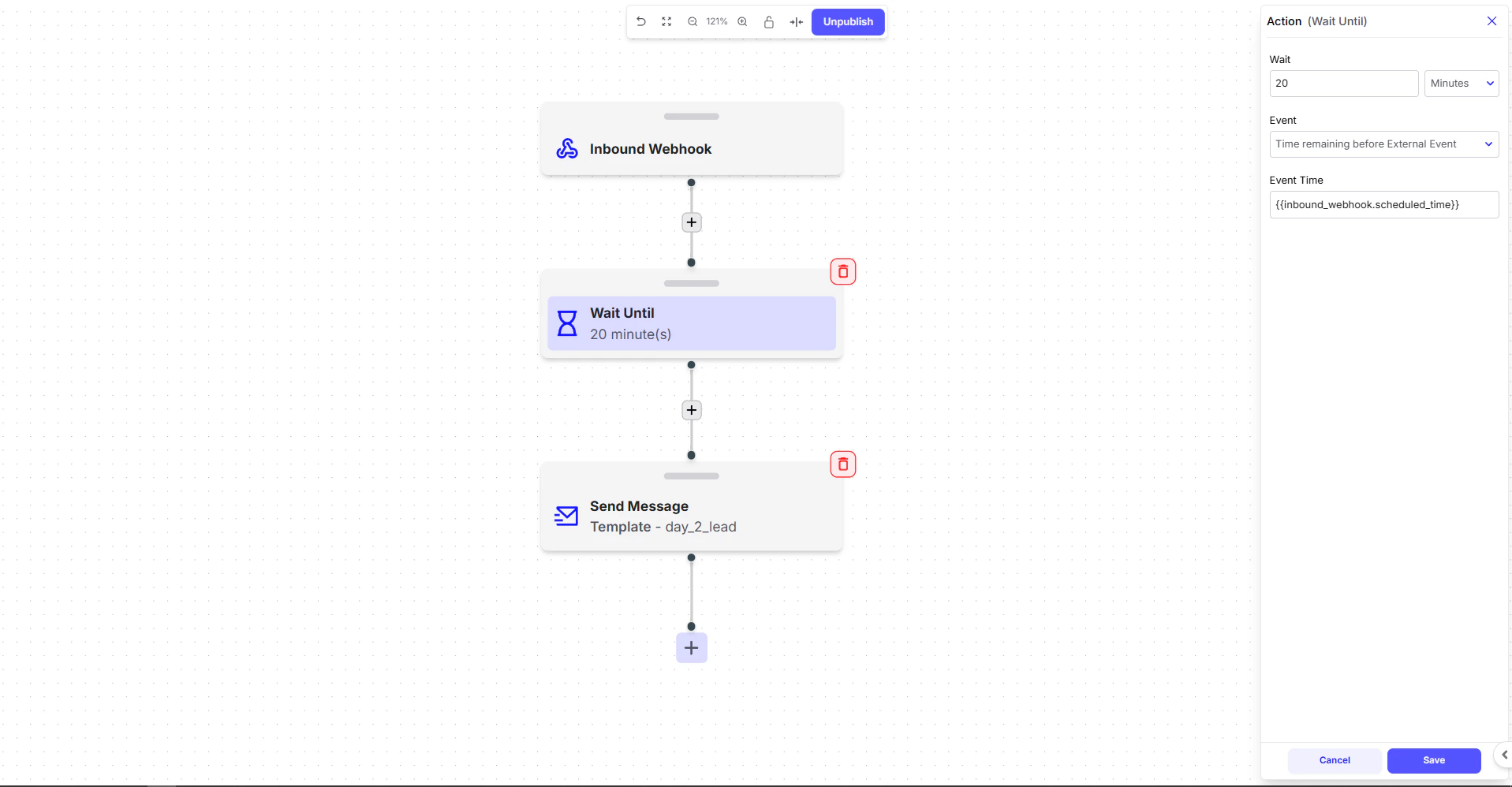 1. **Inbound Webhook**
* Captures the meeting data from your CRM, including the scheduled time.
Example webhook payload:
```json theme={null}
{
"meeting_id": "mtg_12345",
"title": "Stand Up Meeting",
"scheduled_time": "Saturday, September 20, 2025 10:00 PM",
"phone_number": "918237502610",
"organizer": {
"name": "Avinash",
"email": "avinash@chatzy.ai"
}
}
```
2. **Wait Until**
* Configure the action to wait until a specific duration *before the meeting*.
* Example: *20 minutes before the scheduled meeting time*.
* In the **Event Time** field, use a **dynamic variable** from the webhook:
```
{{inbound_webhook.scheduled_time}}
```
* ⚠️ Make sure your CRM sends the date-time in this format:
```
%A, %B %d, %Y %I:%M %p
```
If not you have to convert it in the format using the `Execute Code ` action before wait-until action then save that new variable and use it in `Event Time` section.
3. **Send Message**
* Finally, send a reminder message template to the user:
> *Hello, you have a meeting scheduled on Saturday at 1:00 PM. Thank you!*
This setup ensures that users automatically receive reminders before their scheduled meetings or events.
## Wait Until Working Hours
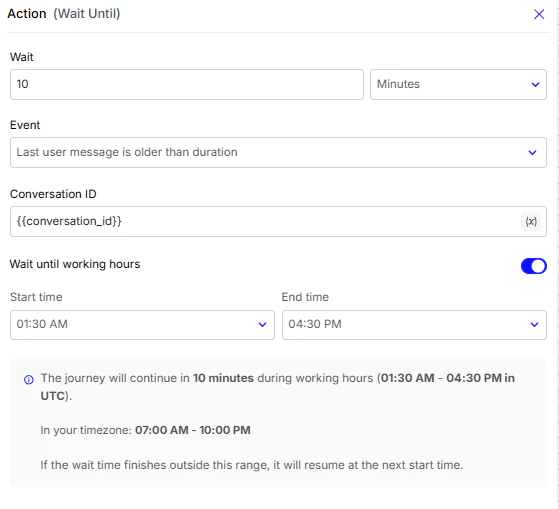
The **Wait Until Working Hours** function is a smart way to manage your conversational flows. This feature ensures that your chatbot's journey continues only during a specified time window, preventing messages from being sent to customers at inconvenient times (e.g., midnight).
1. **Inbound Webhook**
* Captures the meeting data from your CRM, including the scheduled time.
Example webhook payload:
```json theme={null}
{
"meeting_id": "mtg_12345",
"title": "Stand Up Meeting",
"scheduled_time": "Saturday, September 20, 2025 10:00 PM",
"phone_number": "918237502610",
"organizer": {
"name": "Avinash",
"email": "avinash@chatzy.ai"
}
}
```
2. **Wait Until**
* Configure the action to wait until a specific duration *before the meeting*.
* Example: *20 minutes before the scheduled meeting time*.
* In the **Event Time** field, use a **dynamic variable** from the webhook:
```
{{inbound_webhook.scheduled_time}}
```
* ⚠️ Make sure your CRM sends the date-time in this format:
```
%A, %B %d, %Y %I:%M %p
```
If not you have to convert it in the format using the `Execute Code ` action before wait-until action then save that new variable and use it in `Event Time` section.
3. **Send Message**
* Finally, send a reminder message template to the user:
> *Hello, you have a meeting scheduled on Saturday at 1:00 PM. Thank you!*
This setup ensures that users automatically receive reminders before their scheduled meetings or events.
## Wait Until Working Hours
The **Wait Until Working Hours** function is a smart way to manage your conversational flows. This feature ensures that your chatbot's journey continues only during a specified time window, preventing messages from being sent to customers at inconvenient times (e.g., midnight).
 Here’s how it works:
* You set a **Start time** and **End time** to define your working hours.
* The journey checks if the wait period ends within this window.
* If the wait finishes **inside** your working hours, the journey resumes immediately.
* If it finishes **outside**, the journey pauses and automatically resumes at the next scheduled start time.
> 💡 **Note:** The time range you configure is in **UTC**.\
> Your **local timezone equivalent** is shown just below the configuration (as seen in the screenshot).
***
Suppose you’re using an **AI Agent for lead qualification** on WhatsApp.
1. **Lead Qualification Starts**
* The AI asks for details like *budget, location, and timeline*.
* The user replies with some details but stops midway.
2. **Wait Until Action**
* Add a **Wait Until** step with the event:\
*Last user message is older than 1 hour*.
* This ensures that the journey only proceeds if the user has been inactive for at least an hour.
3. **Wait Until Working Hours**
* Your working hours are set from **10:00 AM to 7:00 PM**.
* If the 1-hour inactivity check ends at **3:00 PM**, the follow-up is sent immediately.
* If the 1-hour inactivity check ends at **11:00 PM**, the journey pauses and automatically resumes at **10:00 AM** the next day.
4. **Follow-Up Message**
* The bot sends:
> “Hey, just checking in. Would you like to continue with your booking?”
✅ **Result:** Leads are nurtured promptly during business hours, while customers aren’t disturbed at odd times.
Here’s how it works:
* You set a **Start time** and **End time** to define your working hours.
* The journey checks if the wait period ends within this window.
* If the wait finishes **inside** your working hours, the journey resumes immediately.
* If it finishes **outside**, the journey pauses and automatically resumes at the next scheduled start time.
> 💡 **Note:** The time range you configure is in **UTC**.\
> Your **local timezone equivalent** is shown just below the configuration (as seen in the screenshot).
***
Suppose you’re using an **AI Agent for lead qualification** on WhatsApp.
1. **Lead Qualification Starts**
* The AI asks for details like *budget, location, and timeline*.
* The user replies with some details but stops midway.
2. **Wait Until Action**
* Add a **Wait Until** step with the event:\
*Last user message is older than 1 hour*.
* This ensures that the journey only proceeds if the user has been inactive for at least an hour.
3. **Wait Until Working Hours**
* Your working hours are set from **10:00 AM to 7:00 PM**.
* If the 1-hour inactivity check ends at **3:00 PM**, the follow-up is sent immediately.
* If the 1-hour inactivity check ends at **11:00 PM**, the journey pauses and automatically resumes at **10:00 AM** the next day.
4. **Follow-Up Message**
* The bot sends:
> “Hey, just checking in. Would you like to continue with your booking?”
✅ **Result:** Leads are nurtured promptly during business hours, while customers aren’t disturbed at odd times.