
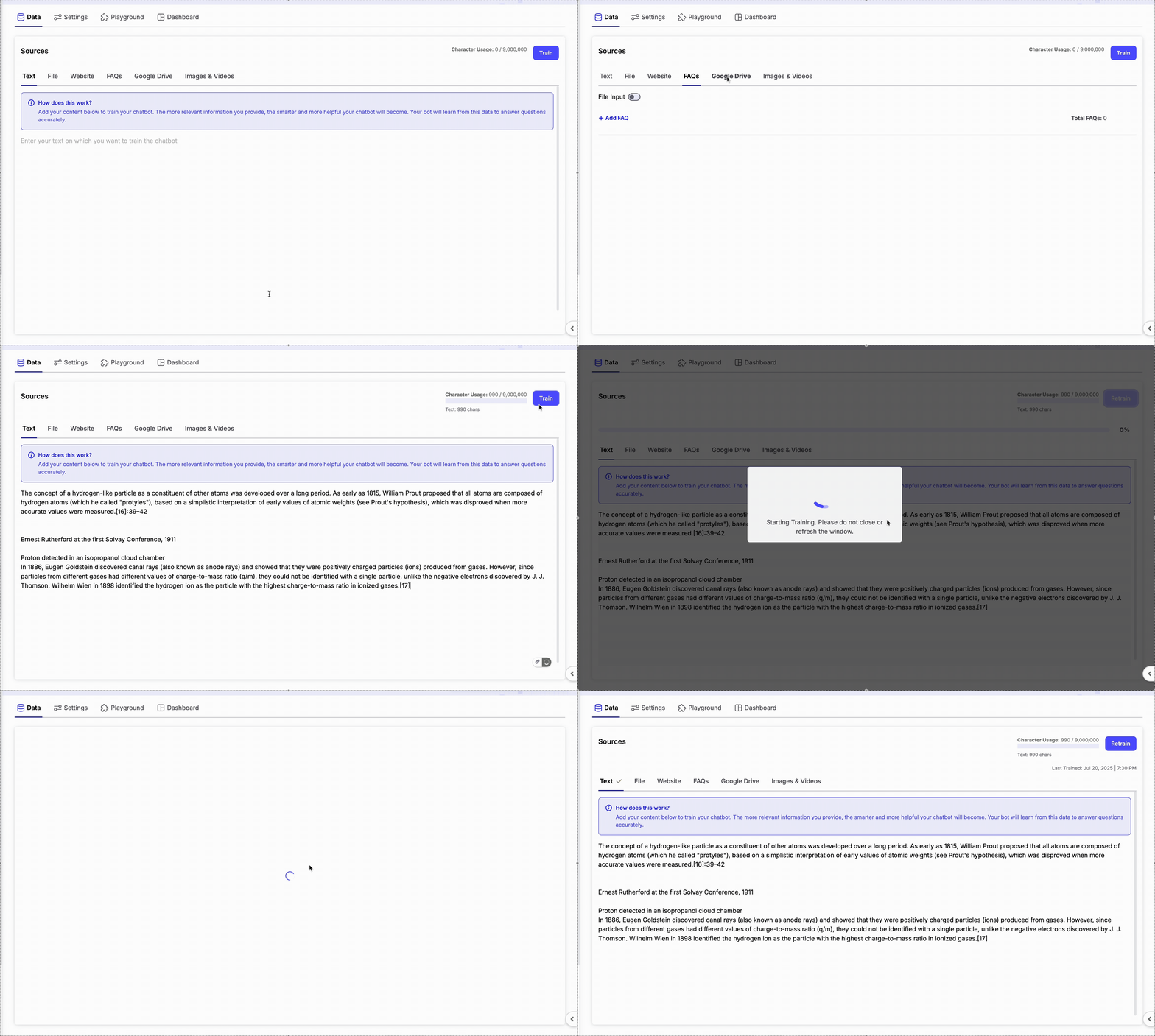
Supported Data Types
- Text: Paste plain text directly into the platform.
- Files: Upload documents such as
.pdf,.docx,.txt, and.csv. - Website URLs: Add a URL and let Chatzy extract useful content.
- FAQs: Manually input question-answer pairs for precise responses.
- Google Drive: Link a public folder with view-only access.
- Media: Upload images, videos, and PDF documents to enrich your AI agent’s knowledge.
Website Data Options
When adding Website URLs as a data source, Chatzy provides multiple ways to fetch content:-
Crawl
Automatically scans all pages linked from the given URL (excluding file downloads).
Example: enteringhttps://example.comwill crawl all linked pages under that domain. -
Sitemap
Provide an XML sitemap URL to fetch structured content from your website. -
Link
Add a single webpage URL to pull specific content. -
CSV File
Upload a CSV containing multiple URLs for bulk website training.
Apify Crawler (Optional)
You can enable Use Apify Crawler for more advanced and accurate website crawling.- Consumes 2 credits per webpage crawled.
- Extracts cleaner, structured content optimized for LLM training.
- Recommended for large or dynamic websites.
The Website tab gives you the flexibility to crawl entire websites, import sitemaps, train from individual pages, or bulk import URLs using CSV files.
FAQ CSV Import
You can bulk import FAQs using a CSV file.- The first column is treated as the Question.
- The second column is treated as the Answer.
- The CSV must not contain headers.
Google Drive Import
Train your AI Agent directly from documents stored in Google Drive.- Enter the view-only link of a Google Drive folder.
- The folder may contain Google Docs and Google Sheets.
- Ensure the folder is publicly accessible with Viewer permission.
Media
You can upload media files to provide additional visual and document context to your AI agent.Supported Files
- Images: PNG and JPEG (Maximum 5 MB per file)
- Videos: MP4 (Maximum 16 MB per file)
- Documents: PDF (Maximum 25 MB per file)
Upload Guidelines
- Each uploaded file requires a description (maximum 25 words).
- Maximum 30 media files can be uploaded.
- Files can be uploaded using drag-and-drop or the file picker.
- Enable Add Directly to Prompt if you want media links and descriptions to be included directly in the AI Agent’s Base Prompt.
Training Your Data
After adding or updating your knowledge sources:- Click Train in the top-right corner.
- Wait for the training process to complete.
- Once training finishes, your AI agent will immediately begin using the latest knowledge during conversations.
Auto Data Train
If your knowledge sources are updated frequently, you can enable Auto Data Train to retrain your agent automatically without manual intervention. Available options:- Off – Manual training only.
- Daily – Retrains every day.
- Weekly – Retrains once every week.
- Fortnightly – Retrains once every two weeks.
- Monthly – Retrains once every month.