
This tab is your debugging and analytics hub it logs every execution of a journey, helping you track performance and troubleshoot issues.
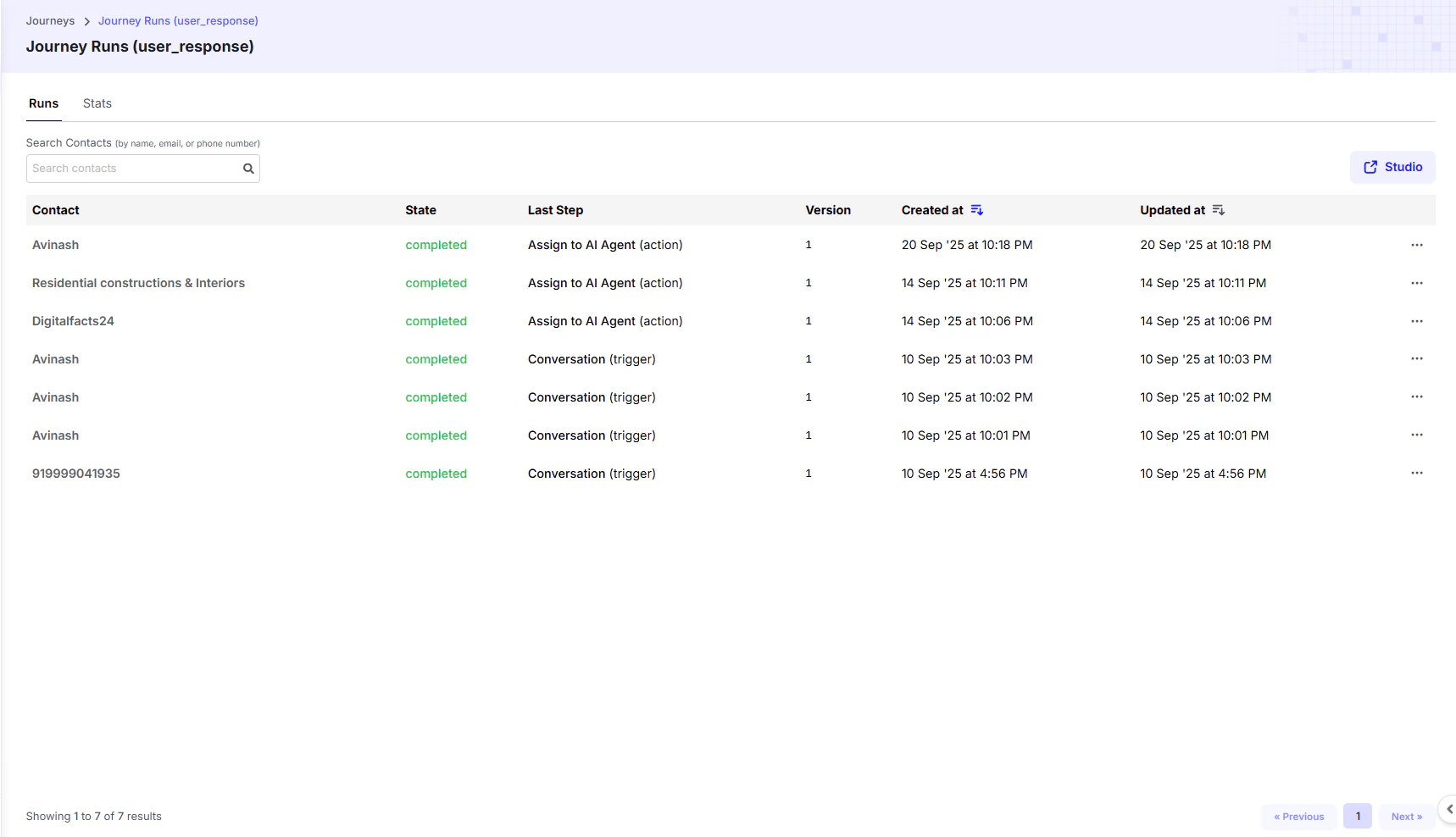
Journey Runs List
The main table provides a summary of each journey execution:Steps Completed
Clicking on a specific journey run opens a detailed view: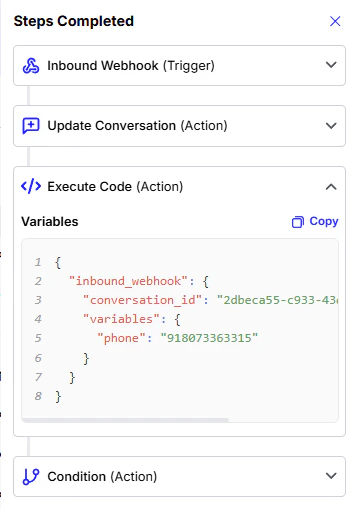
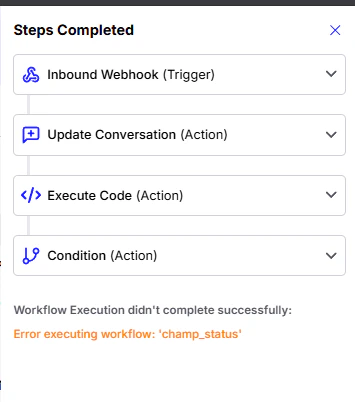
- Steps Completed – A sequential log of every trigger and action executed.
- Variables – Expanding a step reveals all variables created and used.
It shows all the data that was available for the previous action to use in the form of a Python dictionary. This dictionary holds all the variables created inside the journey, and you can later use them throughout your flow.
Error Reporting
The Journey Runs page not only tracks successful executions but also provides clear visibility into any errors that occur. This is a critical feature for debugging and ensuring your flows run smoothly.- Error Message Display: If a journey fails to complete, an error message is displayed at the bottom of the “Steps Completed” list. The message will specify that the workflow did not complete and will provide the exact error that occurred.
E.g. In the screenshot, the error isError executing workflow: 'champ_status'. - Debugging: You can use this error message to quickly identify the problematic step in your journey. By expanding the steps, you can examine the variables and fix the issue.