
The Chat Widget Tab
The Chat Widget tab allows you to customize the look, feel, and functionality of your chatbot when it is embedded on your website. Proper customization ensures a smooth and on-brand chat experience for your users.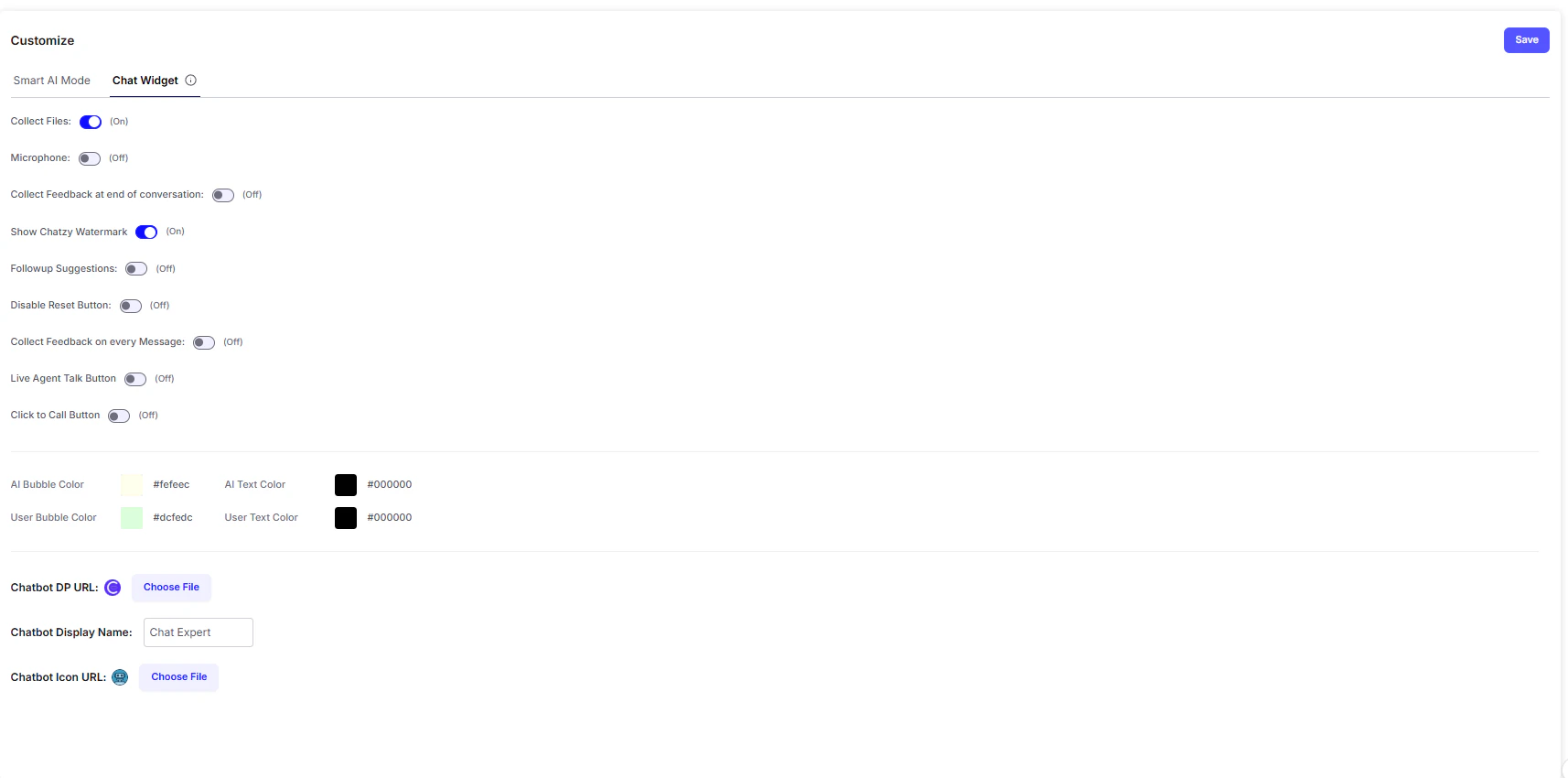
Key Features
-
Collect Files
Enables users to upload files (images, PDFs, documents) directly into the chat. Useful for cases like resume uploads, ID proof submissions, or support screenshots. -
Microphone
Adds a microphone button so users can send voice messages instead of typing, improving accessibility and convenience. -
Collect Feedback at End of Conversation
Prompts users to rate or provide feedback at the close of a session, helping you measure satisfaction and improve chatbot performance. -
Show Chatzy Watermark
Displays a small “Powered by Chatzy” watermark at the bottom of the widget. -
Follow-up Suggestions
Automatically provides suggested questions or prompts after each chatbot response, keeping the conversation engaging and guiding users forward. -
Disable Reset Button
Removes the option for users to clear conversation history, ensuring the full context of the session is preserved. -
Collect Feedback on Every Message
Adds a per-message rating system, allowing users to give real-time feedback on the chatbot’s answers. -
Live Agent Talk Button
Adds a one-click option to escalate the chat to a human agent, ensuring smooth handoffs for complex queries. -
Click to Call Button
Lets users instantly initiate a phone call from the chat widget especially useful for support or sales teams.
Branding & Design Options
-
Color Customization
Tailor the widget’s colors to match your brand identity:- AI Bubble Color → Background color of chatbot’s replies
- AI Text Color → Text color in chatbot replies
- User Bubble Color → Background color of user messages
- User Text Color → Text color in user messages
-
Chatbot DP URL & Chatbot Icon URL
- DP (Display Picture): The main profile image of your chatbot (visible inside the chat).
- Icon: The small floating image/button that appears on your website to open the chat widget.
Example Use Case
Imagine you’re running a real estate website:- A visitor starts chatting with the bot to check property listings.
- They use the Microphone button to send a voice query: “Show me 2BHK apartments in Pune under ₹50 lakhs.”
- The chatbot responds with results and provides Follow-up Suggestions like:
“Do you want to book a site visit?” or “Would you like financing options?” - The visitor clicks the Live Agent Talk Button to connect with a sales representative.
- At the end of the conversation, they are prompted with Feedback collection, helping you evaluate the bot’s performance.