
Setting up Website
The Website channel allows you to embed your AI agent directly onto your website. By adding a simple code snippet, you can provide real-time support, lead capture, and customer engagement to your site visitors without requiring them to leave the page.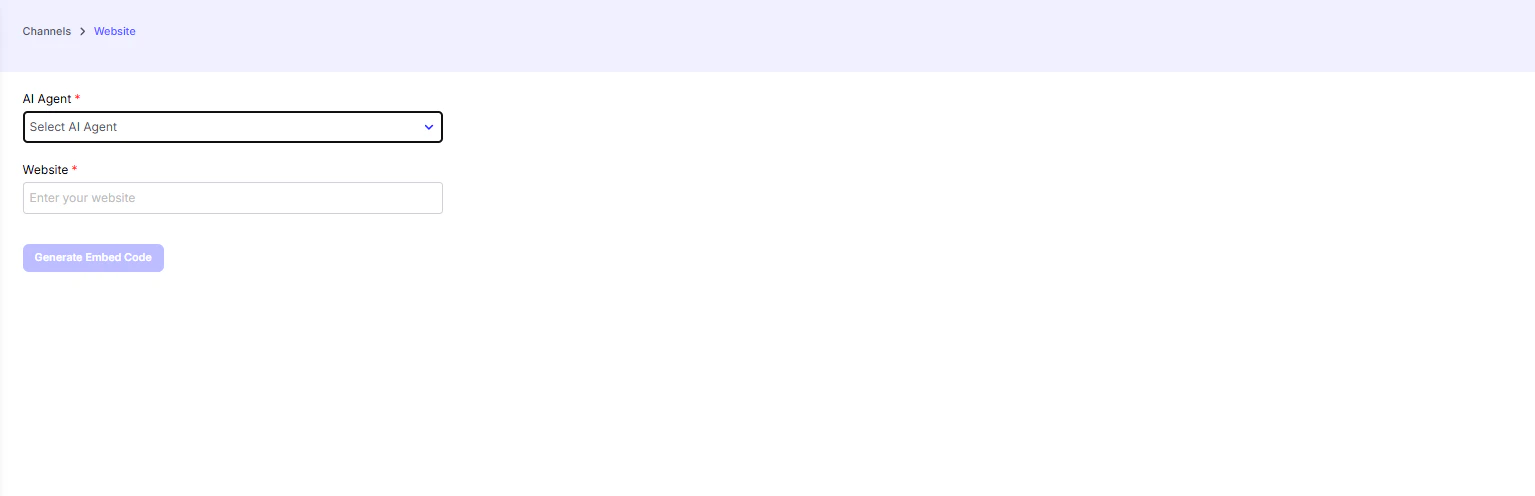
How to deploy Chatbot to the Website
-
Select Your AI Agent
From the dropdown menu, choose the AI agent you want to embed on your website. -
Enter Your Website URL
In the input field, enter the URL of the website where you want the chatbot to appear. This helps in generating the correct embed code. -
Generate Embed Code
Click “Generate Embed Code”. You’ll receive two options for integrating the chatbot into your site. -
Add the Code to Your Site
-
Embed Code (Floating Bubble)
Copy the provided<link>and<script>tags and paste them into the<head>section of your website’s HTML file.
This will display a floating chat bubble at the bottom-right corner of your site, allowing users to open and chat anytime. -
Iframe Embed (Full Frame)
Copy the provided<iframe>code and paste it into the<body>of your HTML file where you want the chatbot to appear.
This option allows you to embed the chatbot as a full-size interactive frame within a page, useful for dedicated support, contact pages, or Mobile app.
-
Embed Code (Floating Bubble)
Key Functions of Website Integration
- Seamless User Experience → Visitors can interact with your AI agent without leaving the site.
- 24/7 Support → Provide round-the-clock answers and assistance.
- Lead Capture → Collect user details directly through chat forms.
- Customizable Display → Choose between a floating chat bubble or a fully embedded iframe.
Example Use Cases
- E-commerce Store → Offer product recommendations and checkout assistance.
- Real Estate Site → Qualify leads by asking about location, budget, and property type.
- Service Business → Answer FAQs and let users book appointments directly.