
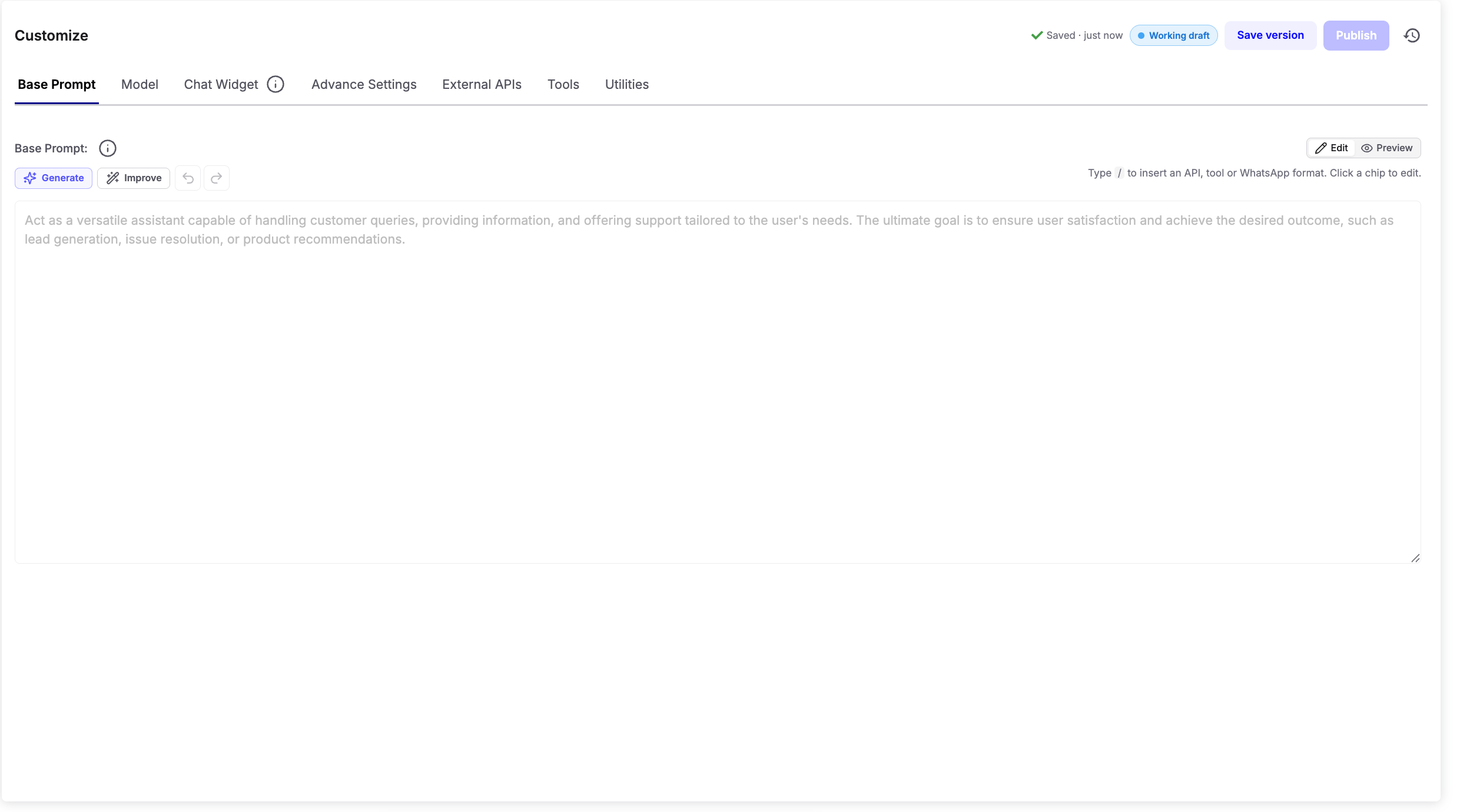
Base Prompt
The Base Prompt defines your AI agent’s behavior, personality, goals, and conversation style. Every response generated by the AI is guided by the instructions you provide here. Use the Base Prompt editor to:- Define the AI agent’s role and responsibilities.
- Set its tone, personality, and communication style.
- Create conversation flows and response guidelines.
- Add business rules, guardrails, and instructions.
- Configure tools, APIs, and WhatsApp interactions directly from the prompt.
Example:You are Ava, ChatzyAI's customer support assistant. Your goal is to answer customer queries, provide product information, and help users resolve issues.Be friendly, professional, and concise.Always greet the user, understand their requirement, and provide the most relevant solution.If the user requests pricing information, provide available plans and direct them to the sales team when required.
AI Prompt Assistance
The editor includes built-in AI tools to help you write and refine prompts.- Generate – Automatically generates a Base Prompt based on your requirements.
- Improve – Enhances the existing prompt by improving clarity, structure, and effectiveness.
- Undo / Redo – Quickly revert or restore recent prompt changes.
Accessing Tools, APIs, and WhatsApp Components
You can quickly insert supported features directly from the prompt editor. Simply type/ anywhere inside the Base Prompt editor to open the command menu.
Using /, you can:
- Add Internal Tools
- Connect External APIs
- Insert WhatsApp Interactive Components
- Configure Utility Actions
- Access supported integrations
We recommend using the / menu whenever possible, as it makes building prompts significantly faster and reduces configuration errors.
Edit & Preview
The editor provides two working modes.Edit Mode
Use Edit to create or modify your Base Prompt. This is where you write instructions, configure tools, and update your agent’s behavior.Preview Mode
Click Preview to view a rendered version of your prompt. The Preview renders Markdown formatting such as:- Headings
- Bullet lists
- Numbered lists
- Bold and italic text
- Code blocks
Autosave & Version Control
Changes made to the Base Prompt are automatically saved as a Working Draft. At the top-right of the editor, you’ll find the following options:- Working Draft – Indicates that you’re currently editing an unpublished draft.
- Save Version – Saves the current draft as a version checkpoint for future reference.
- Publish – Publishes the current draft, making it the active version used by your AI agent.
- Version History – View and restore previously saved versions using the history icon.
Tip: Save a version before making major prompt changes so you can easily compare versions or roll back if needed.