
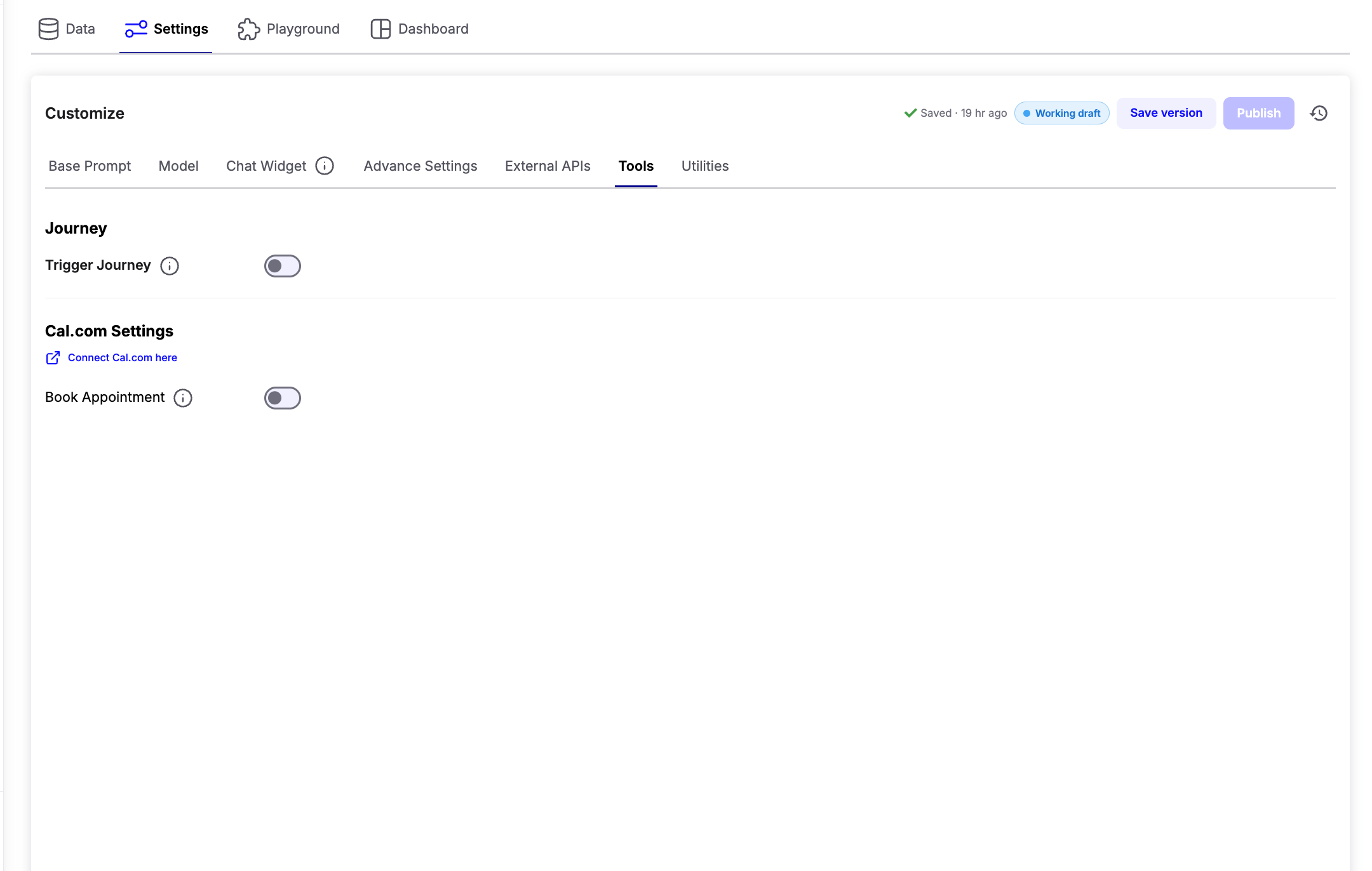
Journey
The Trigger Journey feature allows your Conversational AI Agent to automatically trigger a Journey when specific conditions are met during a conversation. Enable the Trigger Journey toggle and select the journey you want the AI agent to trigger.Note: Only journeys that use an Inbound Webhook trigger are available for selection.
Configuring Journey Triggers
After selecting a journey, describe when the AI should trigger it directly in your Base Prompt. Clearly specify:- The condition for triggering the journey.
- The journey name.
- The data that should be passed to the journey.
Cal.com Integration
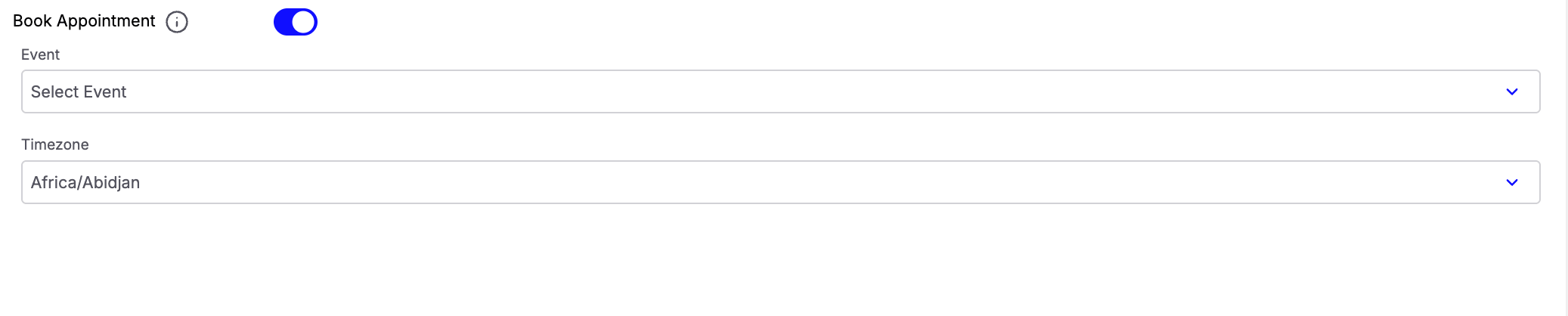
Chatzy AI supports native integration with Cal.com for appointment scheduling. Before enabling appointment booking, connect your Cal.com account using the Connect Cal.com here option. After connecting your account:- Enable the Book Appointment toggle.
- Select the Cal.com Event that should be booked by the AI agent.
- Choose the Timezone that should be used while checking availability and scheduling appointments.
/ in the prompt editor to access the available appointment tools, including:
- Check Availability Of Slots
- Book Appointment
- Reschedule Appointment
- Cancel Appointment
- Get Bookings
Tip: Clearly describe the conditions under which each Cal.com tool should be used in your prompt.